Note: Every Review Run is strategy-specific. The tags, models, instructions, and output fields shown in this documentation are examples only. Configure your Review Run to reflect the claims, defenses, themes, risks, and evaluation criteria defined in your approved strategy.
- Text Classification models assign strategic tags to documents.
- Text Generation models generate narrative summaries and analysis based on the matter strategy.
Text Classification model
Create a Text Classification model
Create a Text Classification model to assign tags to documents during a Review Run.Before you begin
- You have identified the classifications and analysis needed for the Review Run.
- Required Review Run tags are created.
- Your review strategy and evaluation criteria is defined.
- In the Project space menu, select Collections.
- Select a collection.
- Select Models.
- Select Create Model > Create new model.
- Enter a Name and Description.
- Select Text Classification as the model type.
- In the Positive labels field, add the Review Run tags you want to classify as positive.
- In the Negative labels field, add the Review Run tags you classify as negative.
- Leave the other fields at their default setting.
- Select Create.
Add Text Classification model instructions
Add instructions for your text classification model that tells it the criteria for your Review Run tags. The model instructions should define how documents are evaluated and which tags should be applied when specific criteria are identified.Before you begin
- You have created the text classification model for a Review Run.
- Navigate to your Project > Collection.
- In the Main Menu, select Models.
- Select the Text Classification model you created for your Review Run.
- Select the Instructions tab.
- On the Model Instructions page, select Add instruction > Create new instruction.
-
Enter your instruction text and select the corresponding Review Run tags.
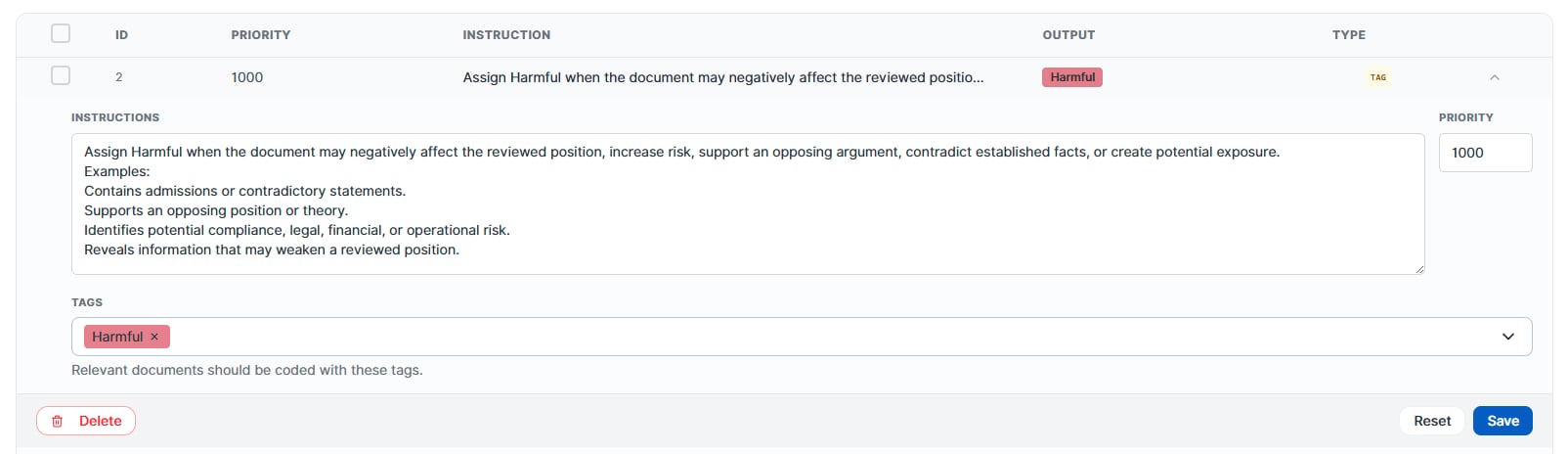
Text Classification Model Instruction Example
- Select Save.
- Repeat steps 5-7 for each instruction you want to add to your model.
Text Generation model
Create a Text Generation model
Create a Text Generation model to generate document narratives and strategic analysis during a Review Run. To create a text generation model for a Review Run, complete the following steps.- In the Project space menu, select Collections.
- Select a collection.
- Select Models.
- Select Create Model > Create new model.
- Enter a Name and Description.
- Select Text Generation as the model type.
- Leave the other fields at their default setting.
- Select Create.
Add Text Generation model instructions
Add instructions for your text generation model that tells it the criteria for your output fields. The model instructions should define what output fields you want and any parameters for those fields.Before you begin
- You have created the text generation model for a Review Run.
- Navigate to your Project > Collection.
- In the Main Menu, select Models.
- Select the Text Classification model you created for your Review Run.
- Select the Instructions tab.
- On the Model Instructions page, select Add instruction > Create new instruction.
-
Enter your instruction text.
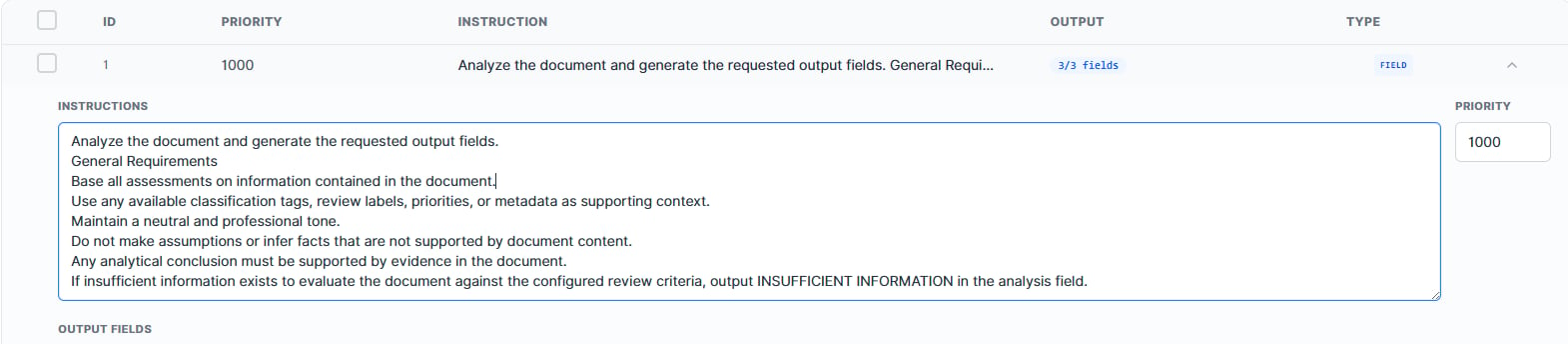
Text Generation Model Instruction Text Example
- Under Output Fields, select Add Field.
- Enter the field name.
-
Add a description for the field.
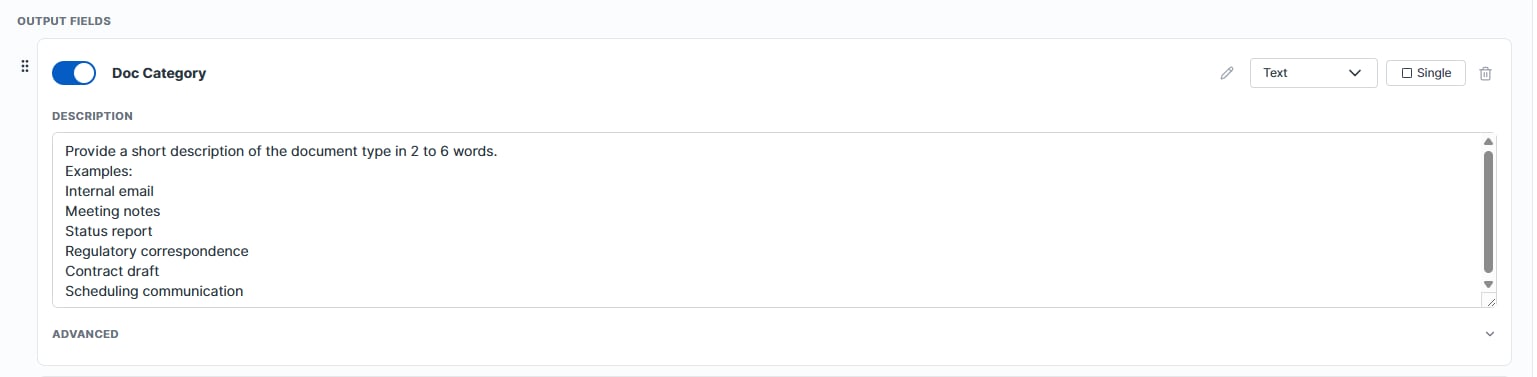
Text Generation Model Instruction Output Field Example
- Optional. Select Add Field to add other output fields, as needed.
- Click Save.