Set up user accounts
Sign up and create an account for Epiq AI to start document review projects.Create an account
On the Epiq AI log-in screen, click the “Sign up” button to access the signup screen.- Create an account with your name, email address, password, and organization name.
- Check your email for a verification link.
- Log in to Epiq AI.
Invite new users
After you create an account, you can create projects and invite collaborators to join the projects you created.- In the Epiq AI Admin settings page, click the Users tab.
- Click Add New User +.
- Enter the user’s name and email, and select a user role.
- Click Preview and Send to send an invitation email to the new user
- Click Done.
Manage user permissions
Only admin users can edit other users’ roles and access to projects.- Edit a user’s role by selecting a role from the dropdown options in the Role column. See Role-based access control for the definition of different roles.
- Edit a user’s project access by clicking “Manage access” in the Project Access column. Project Access is not editable for Admin users since they have access to all projects created by the organization account.
Edit user settings
User settings allow you to update your profile, including name, email preferences, and time zone preferences.- From Epiq AI, click the user icon in the upper right.
- Click User Settings.
- Update your display name.
- Click Update Profile.
Reset password
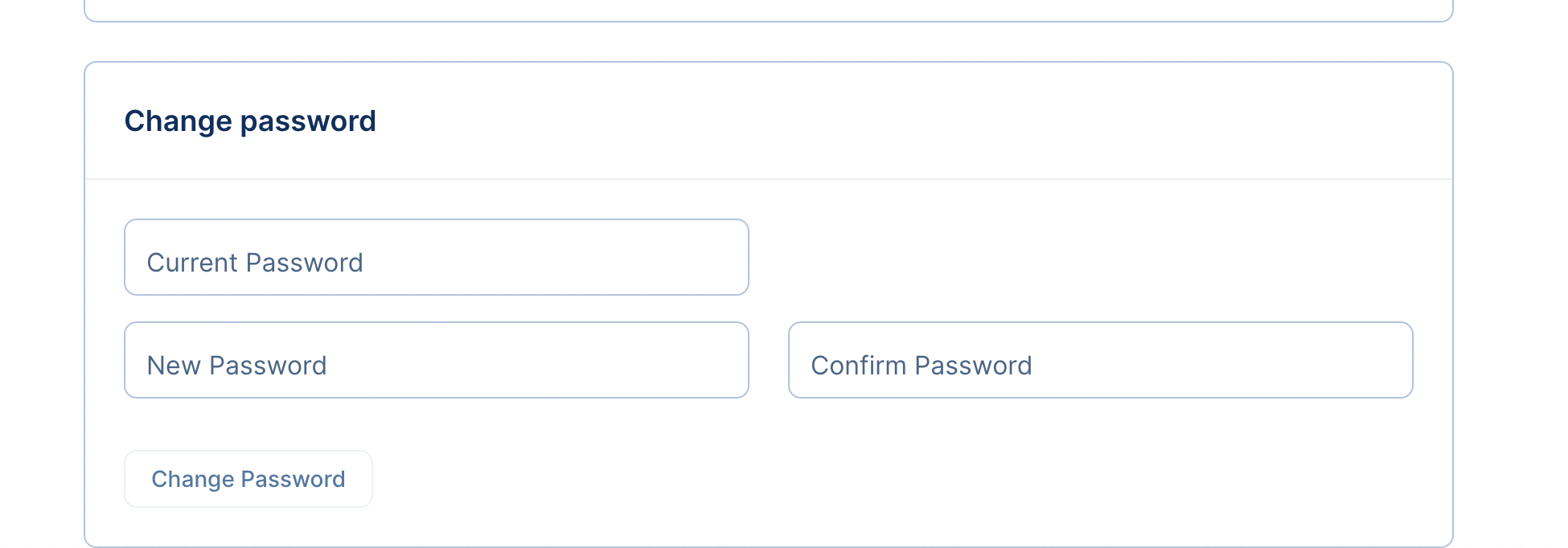
If you forget your password, you can click “Forgot my password” on the Epiq AI login screen. A temporary password will be sent to your email for password recovery. You can also change your password by clicking the user icon and then clickUser settings.

Manage organization
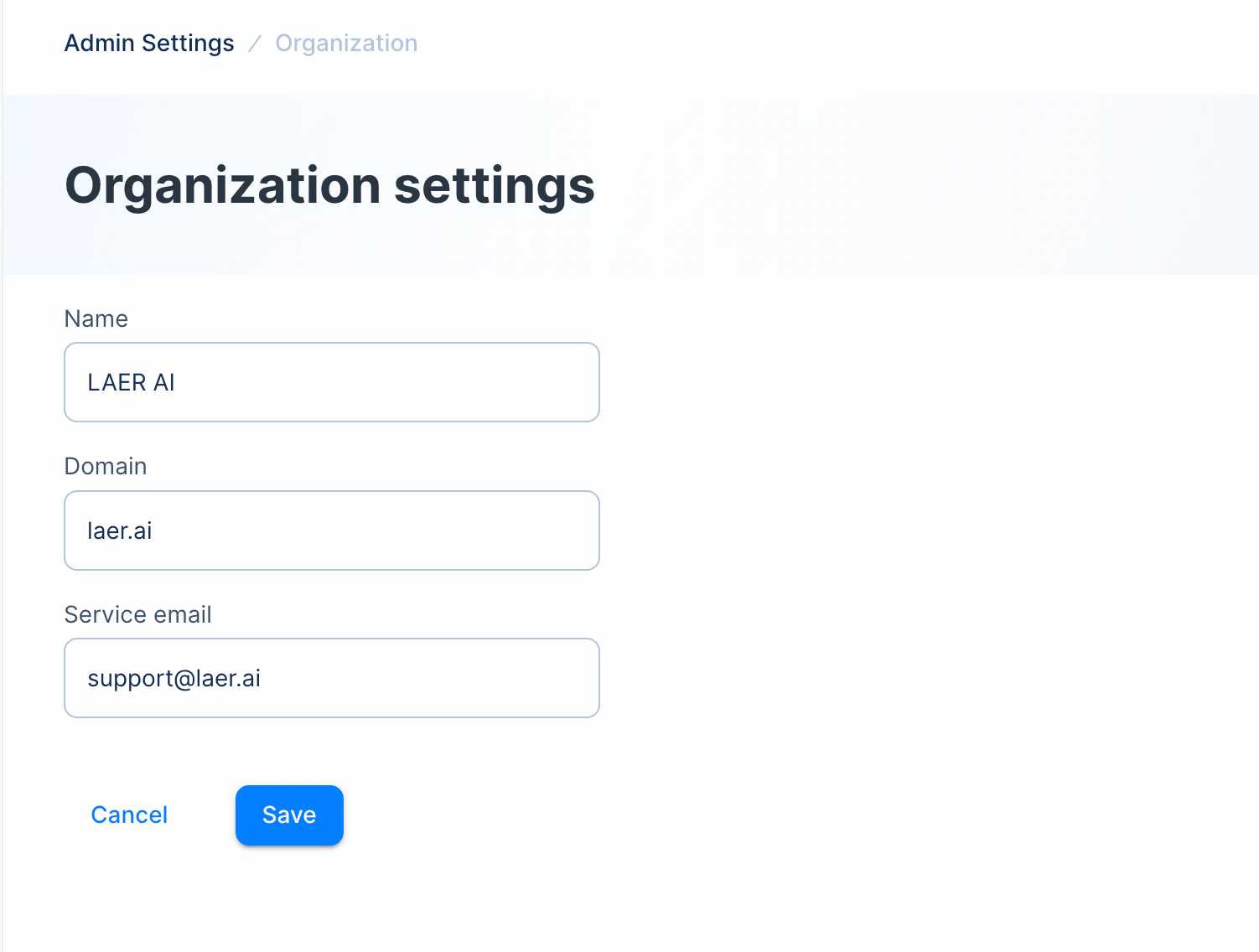
Admin users can change the organization name, domain, and service email under the organization account. Go to Admin settings -> Account -> Organization.