Tags section from the Settings page.
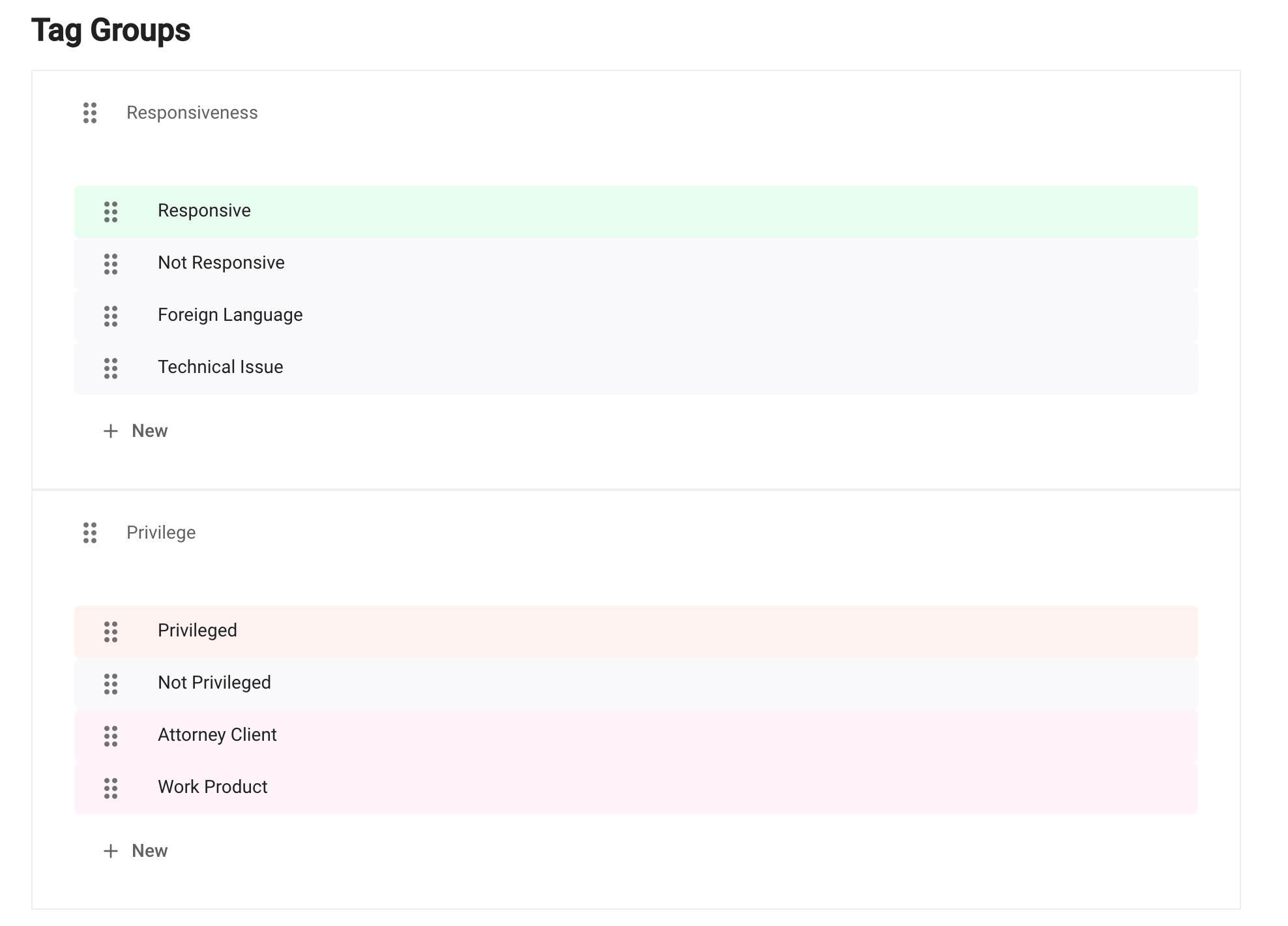
Epiq AI organizes review tags in a two-level hierarchy. Tags that are conceptually related are grouped into a unit called Tag group. For example, tags that are related to responsiveness are grouped into a tag group while tags that are related to privilege are grouped into a different tag group.
A tag group can contain one or more tags. If there are multiple tags, you can specify whether these tags are mutually exclusive, i.e., only one of them can be active at a time.
An example tagging panel is shown below.
Set default tagging panel
You can choose the tagging panel you’d like to use as a default by clicking the tagging panel dropdown. The selection will be treated as the default tagging panel and appear in all document views.Modify tags
Create a tag group
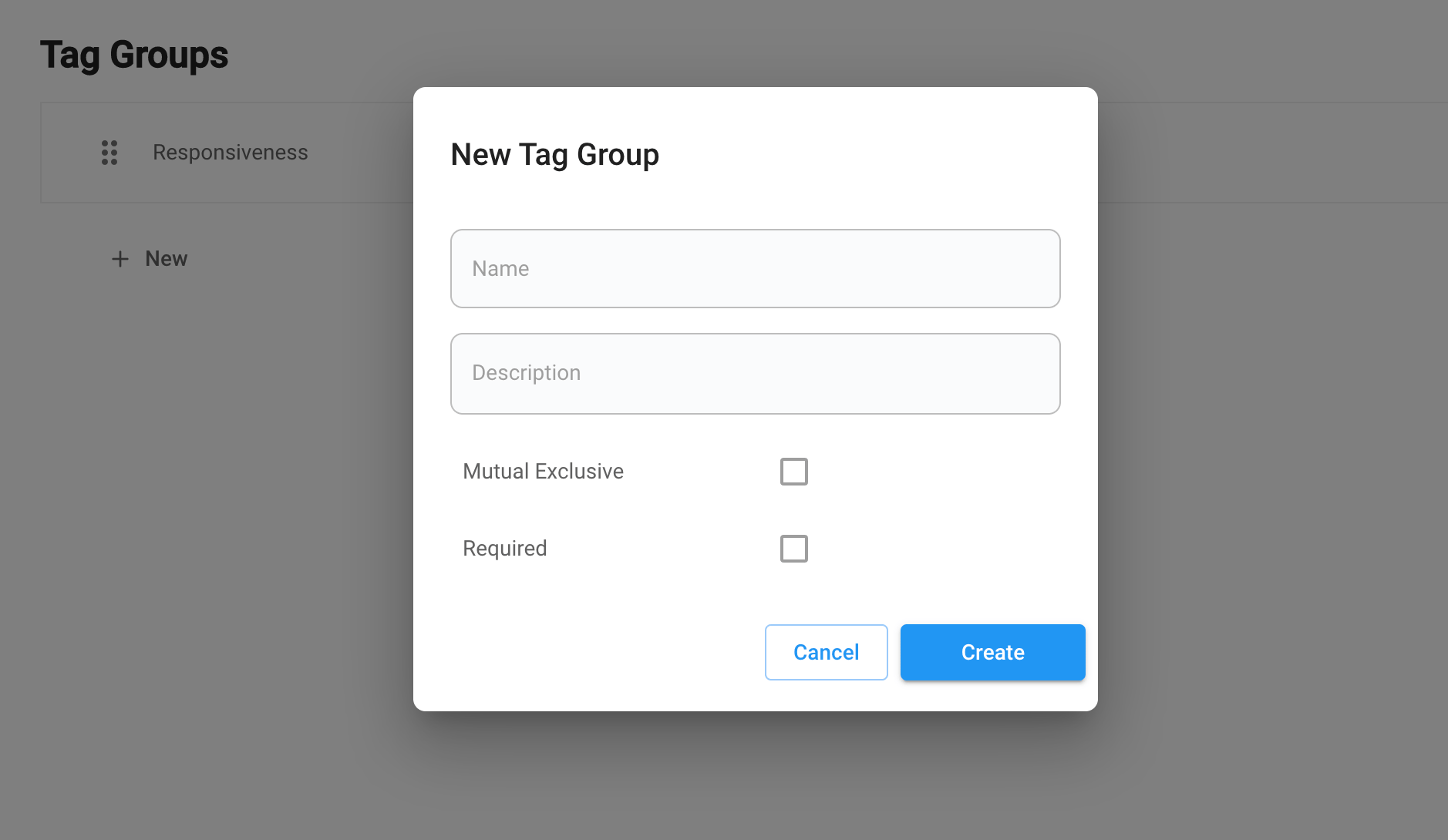
Click on the+ New Tag Group button to add a new tag group.
- Enter a name and a description.
- Select
Mutual Exclusiveif only one of the tags within the tag group can be active. - Deselect
Visibleif you want to hide the tag group in the tagging panel.
Create a tag
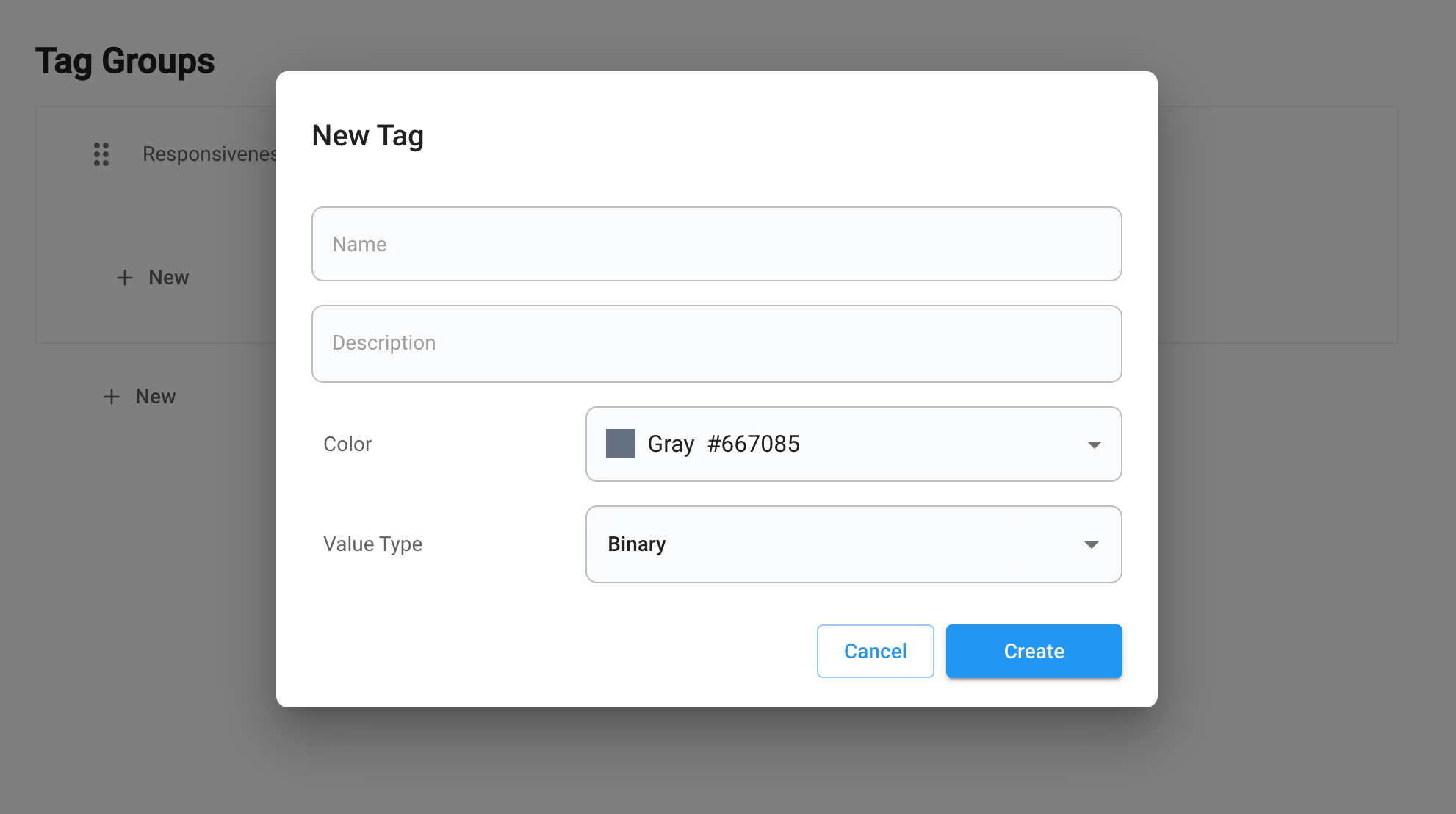
Click on the+ New Tag button to add a new tag within a tag group.
- Enter a name and a description.
- Select a color.
- Select a value type:
Binarymeans the tag can be either on or offConfidenceallows you to enter a confidence value from0to1to indicate how likely the tag applies to the document. If the confidence is0, then the tag does not apply. If the confidence is> 0then the tag applies.Textallows you to enter a non-numeric value (e.g., comments).
- Deselect
Visibleif you want to hide the tag in the tagging panel.
Delete a tag
To delete a tag, click theDelete button that shows up when hovering over the tag you wish to delete.
Once the tag is deleted, it cannot be undone. The deleted tag will no longer show up for documents that are annotated with the tag.
Change tag structure
You can drag and drop a tag group or a tag up and down to change their ordering in the tagging panel.Import tags from a review protocol
Epiq AI can automatically extract tagging layouts from a review protocol. You can upload an existing review protocol or create a new protocol in the UI. See review-protocols.md. Epiq AI parses the review protocol and extracts its section titles and automatically maps them into a set of review tags and adds them to the tagging panel with the same name of the protocol.Create a tagging panel for model training
You can create a special tagging panel for collecting training examples for model training. Each model requires positive and negative examples. You can create a tag group for each model, including the following two tags:- {Issue Tag Name} - Positive
- {Issue Tag Name} - Negative
Enable partial tagging
To allow users to review and save only selected tag groups:- Access Tagging Panel Settings: Select the tagging panel in the dropdown and click the
Editicon to view the settings menu. - Select Partial Tagging: Select the option labeled “Partially Tagged”.