Upload review protocols
In the project’s menu, click theProtocols section and go to the Review Protocols page. Click on the Create New Protocol button. You will be prompted to upload protocol files from your system or create a protocol from a template.
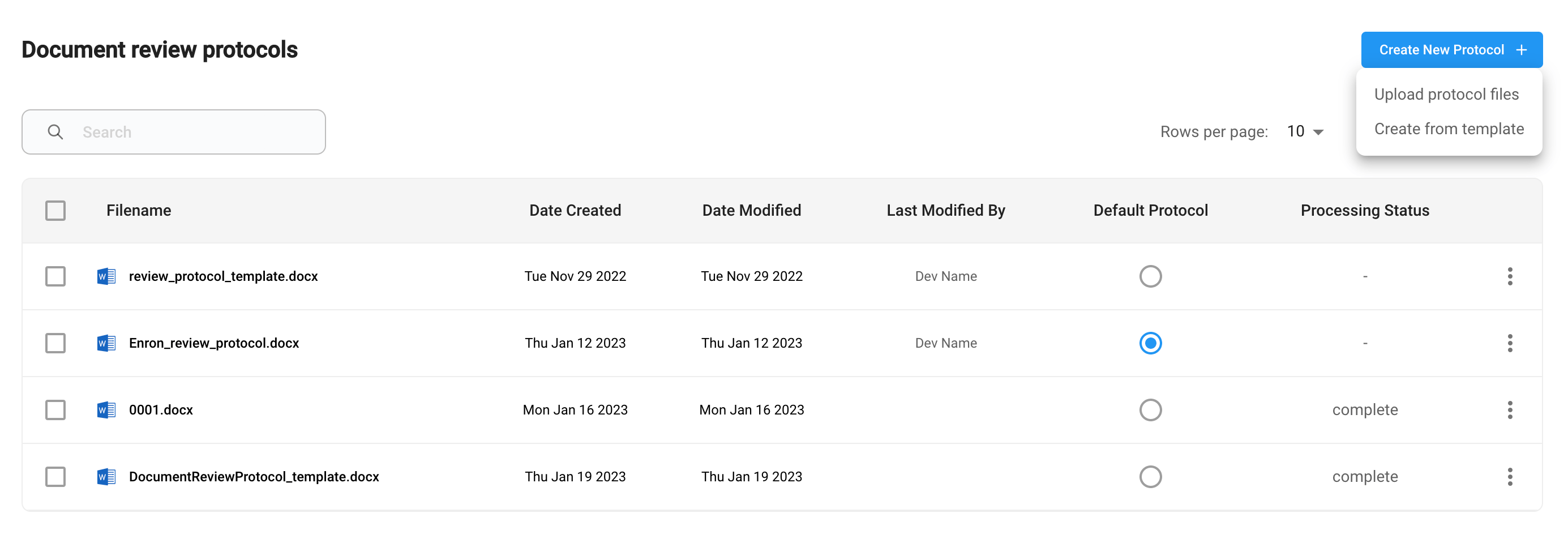
Create from template, the system will automatically generate a protocol and it will appear as a new entry in the protocol table.
Default protocol
There is one protocol that will be the default protocol for the entire project. The default protocol is viewable for any user who is reviewing documents. You can click theProtocol button that is on the top right of the document viewer screen and view the protocol for tagging instructions.
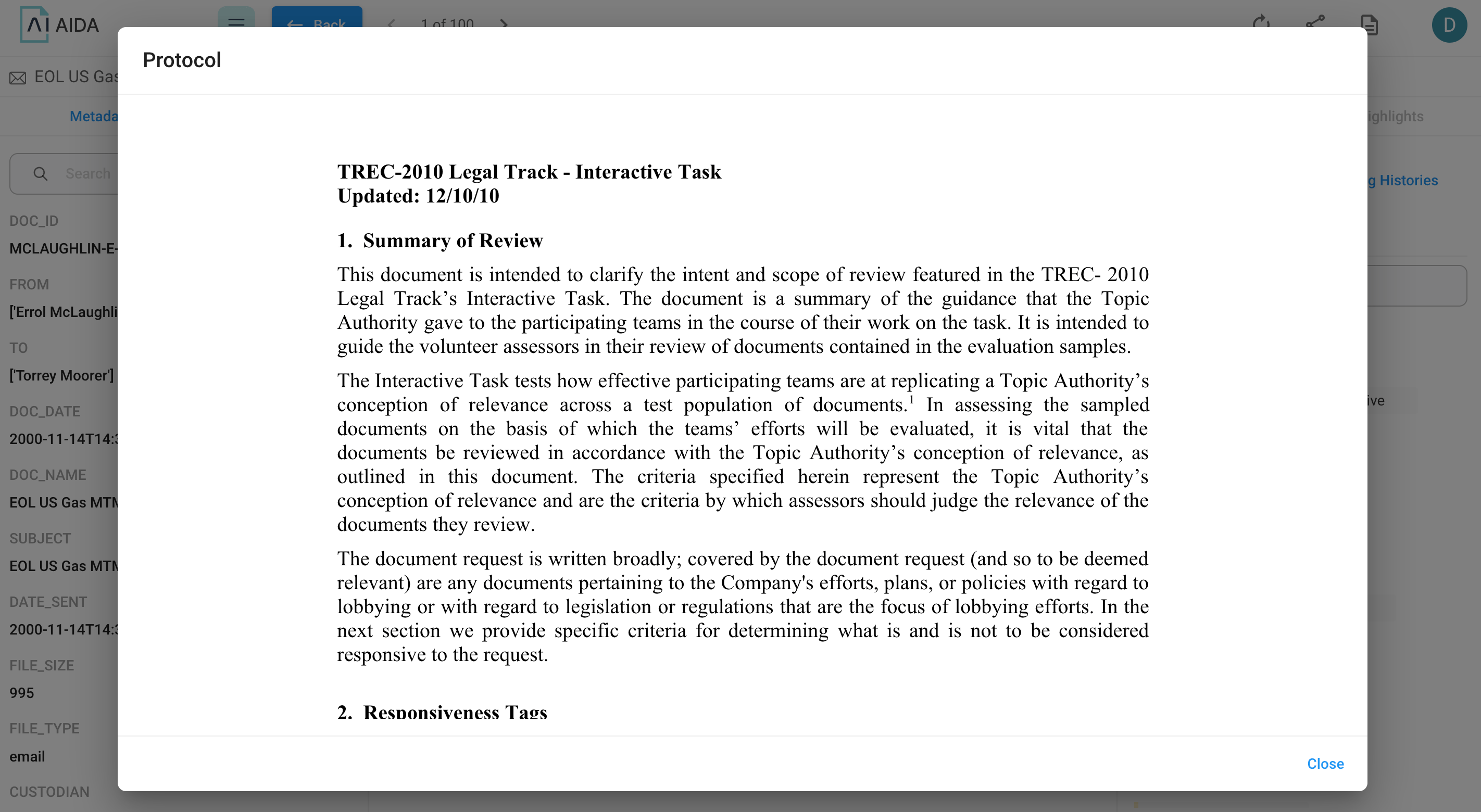
Protocols page.
Protocol template
You can create a protocol directly from a system-generated template. After clickingCreate from template, a new protocol will be generated with a default filename protocol-<datetime>.docx , and show up as the last entry in the protocol table.
Protocol versions
You can select a protocol and view its versions. Click the three dots in the same row as the protocol of interest and then clickView.
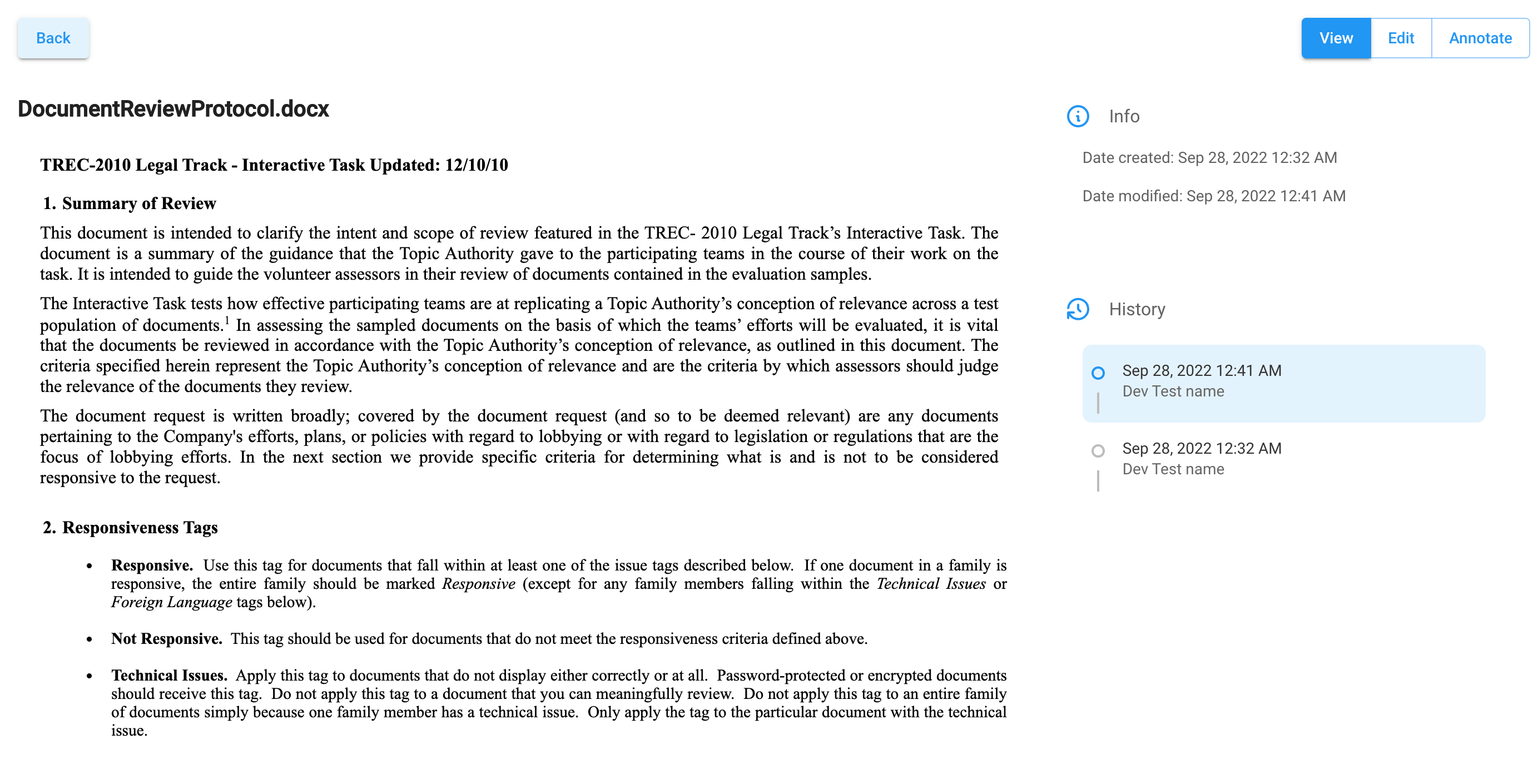
Edit a protocol
You can edit a protocol by clicking theEdit button on the Protocol View page or from the three-dot menu in the row of the selected protocol.
You can edit the protocol in a Word editor and save your changes by clicking Save. Every time you save changes, it will create a new protocol version.
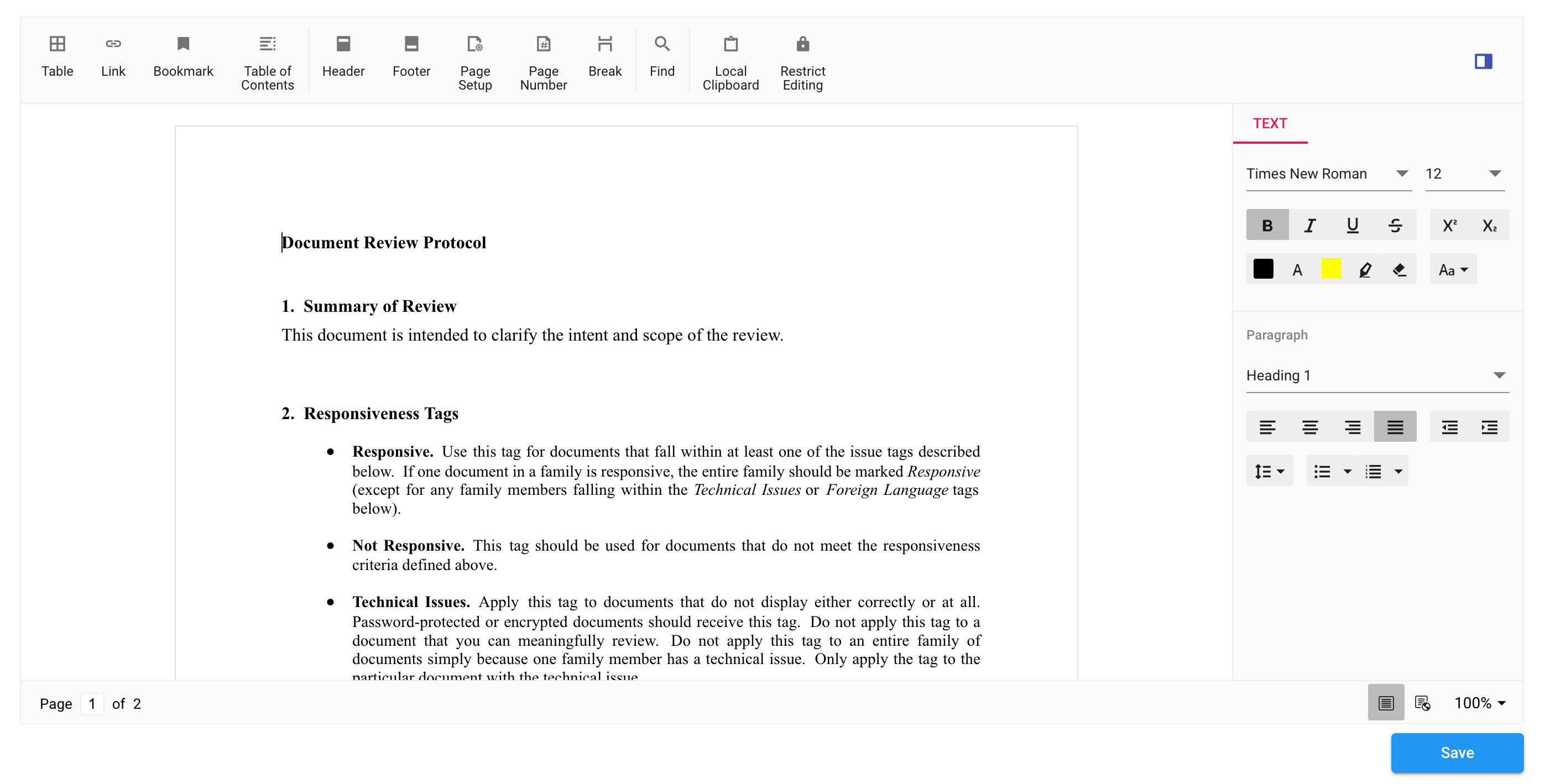
Delete a protocol
Only Project Admins and Managers can delete a protocol. On theReview protocols page, select the protocol(s) you want to delete and click the Delete button.
Deleting protocols is an irreversible and destructive action. Once a protocol has been deleted, it cannot be recovered.
Download protocols
On theReview protocols page, select the protocol(s) you want to download and then click Download. You can also export a protocol in Word or PDF format by clicking the three-dot menu at the end of the row of the protocol.