How To Create A Data Upload
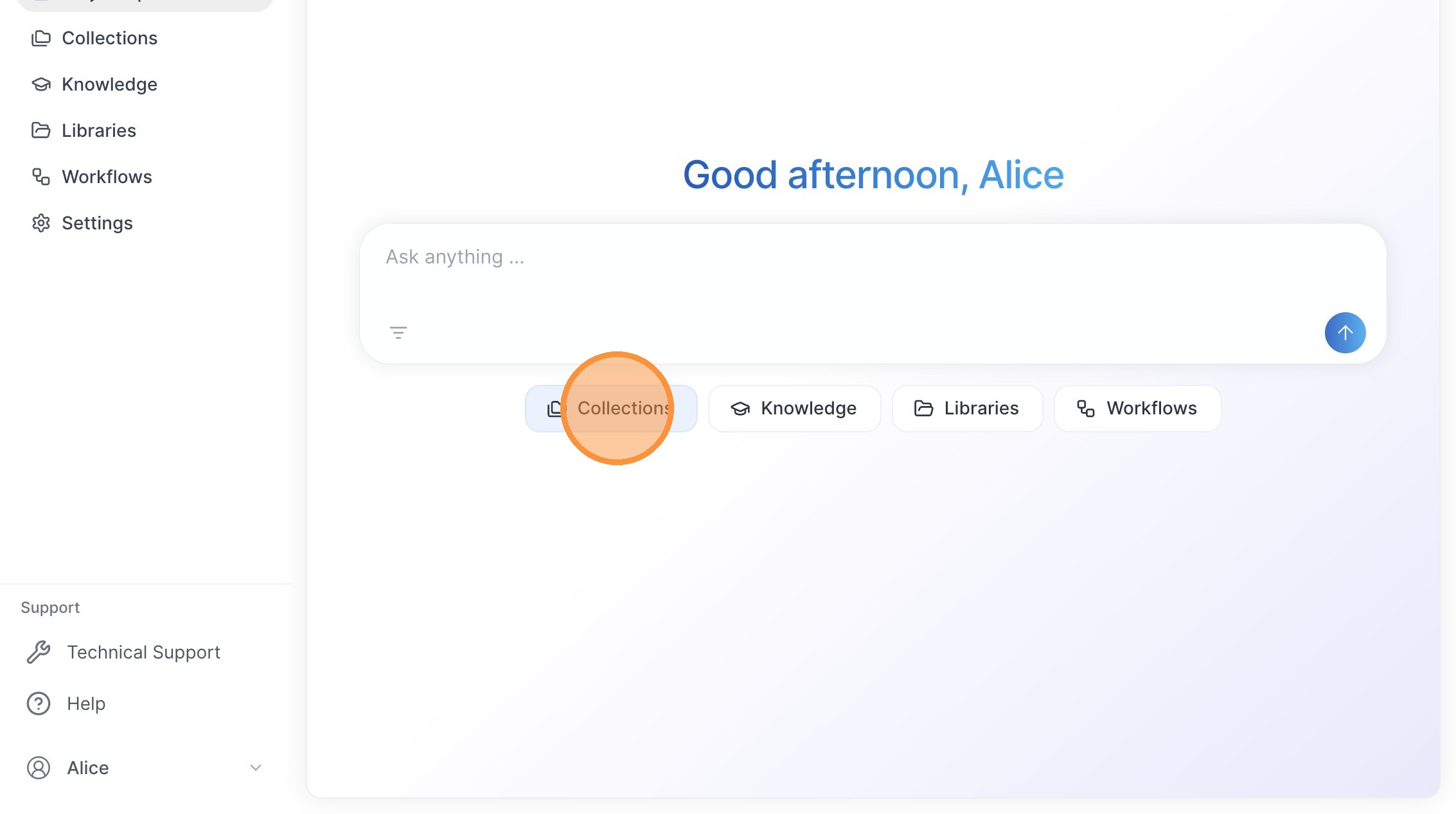
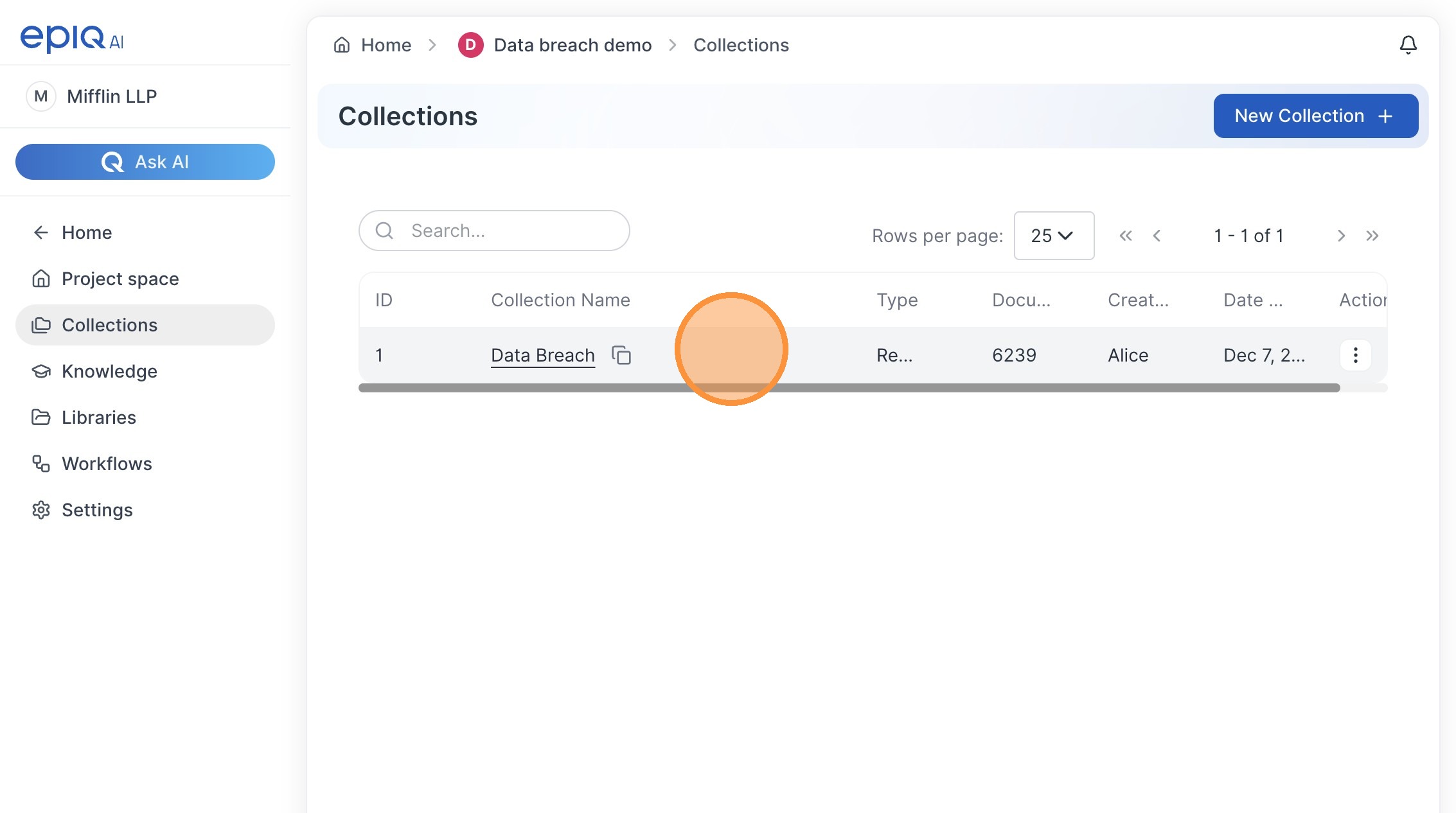
Learn how to efficiently manage your document uploads and organize them using custom workflows within the AIDA platform. This guide provides a step-by-step walkthrough for setting up new data breach collections and structuring your processing pipeline Click a Project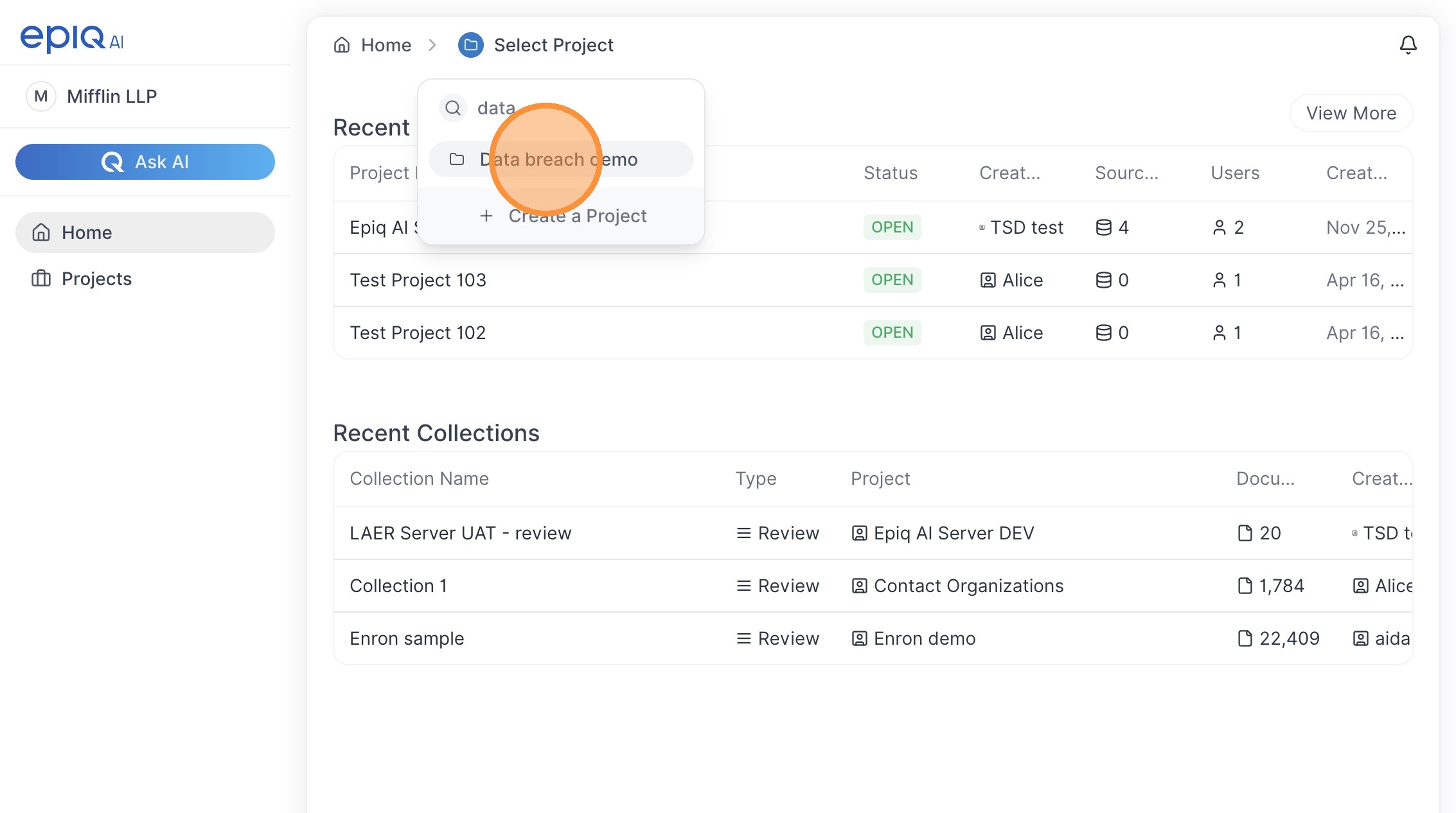 Click “Collections”
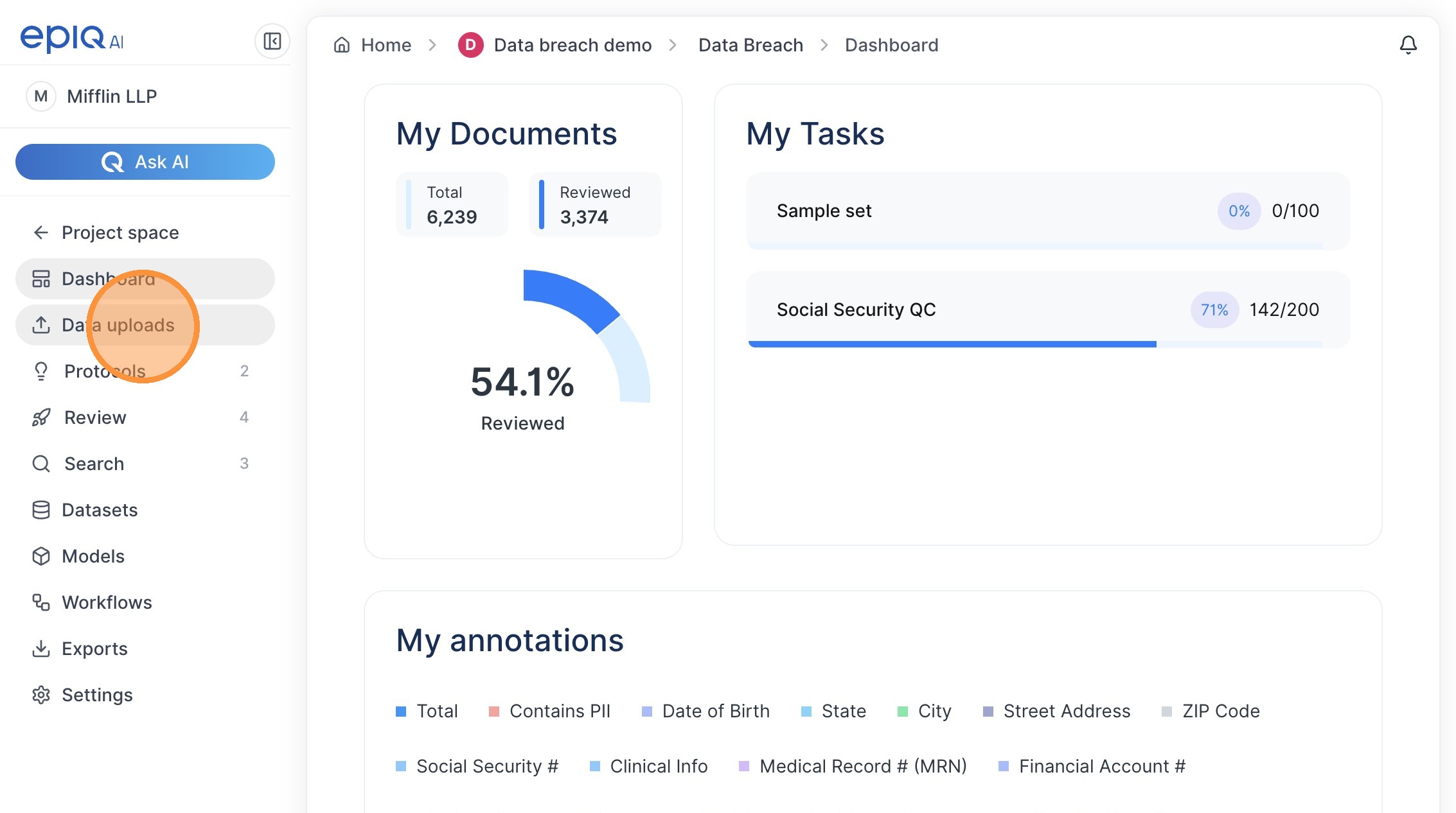
 Click “Data uploads”
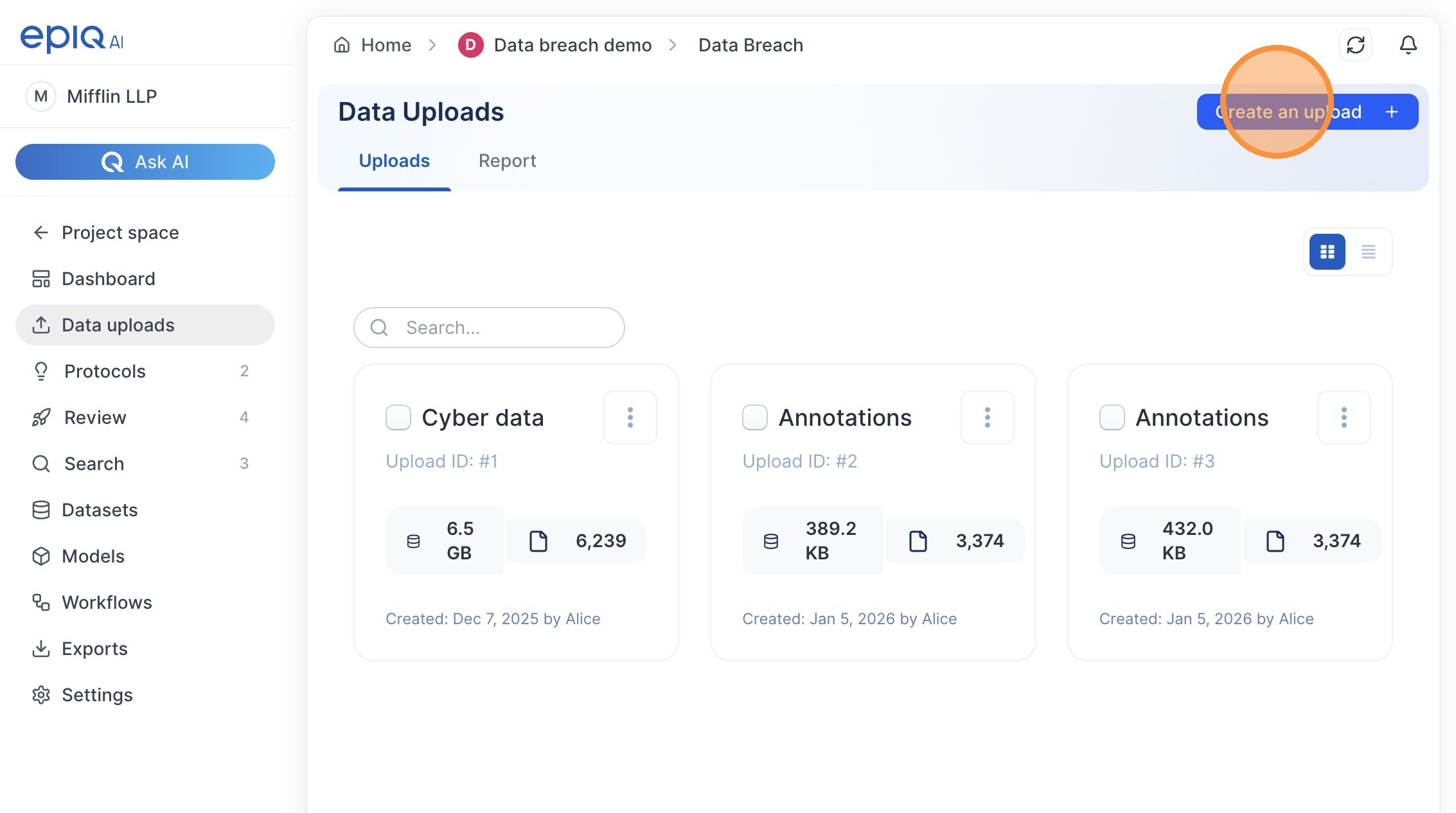
 Click “Create an upload”
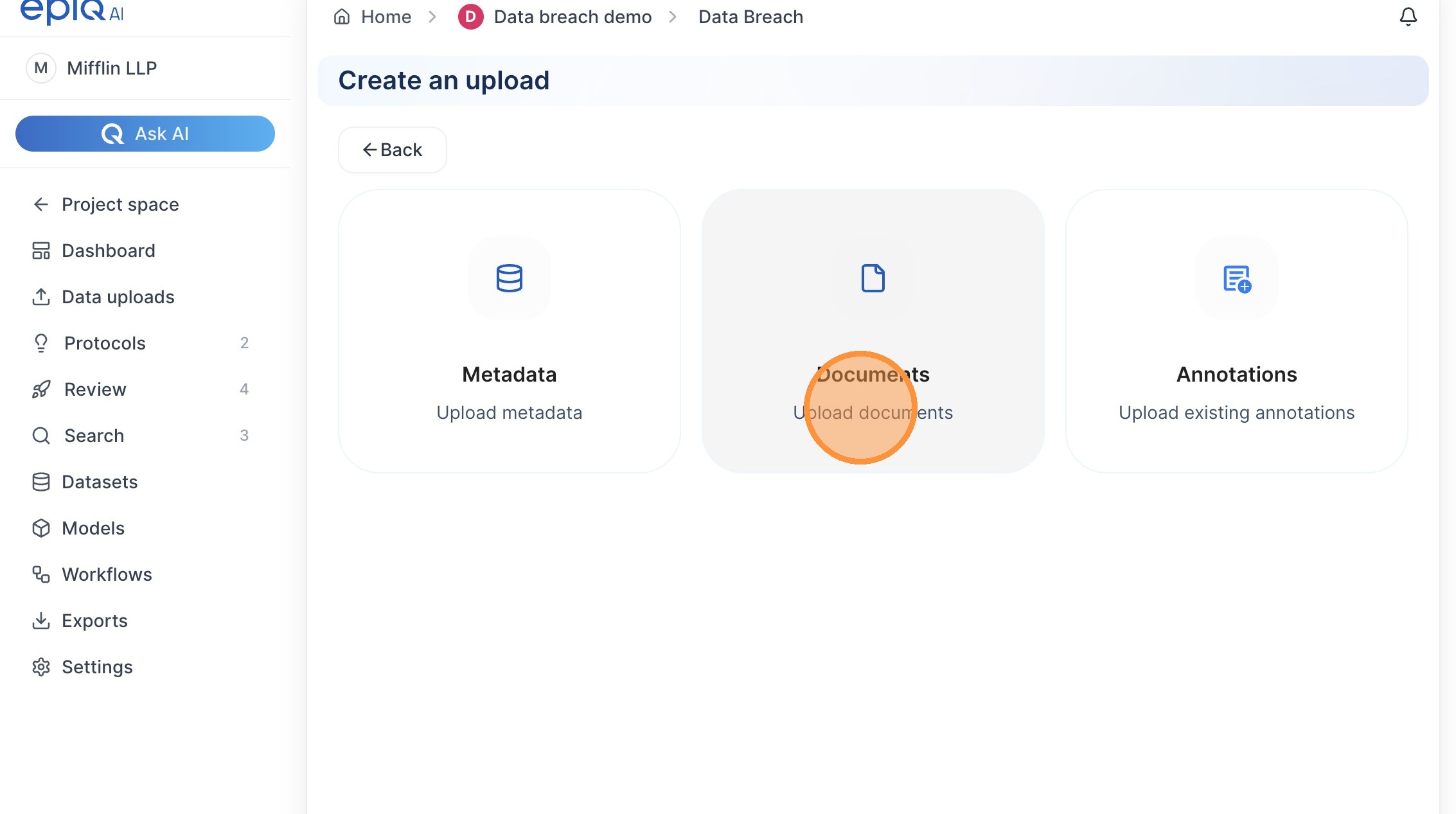
 Click “Upload documents”
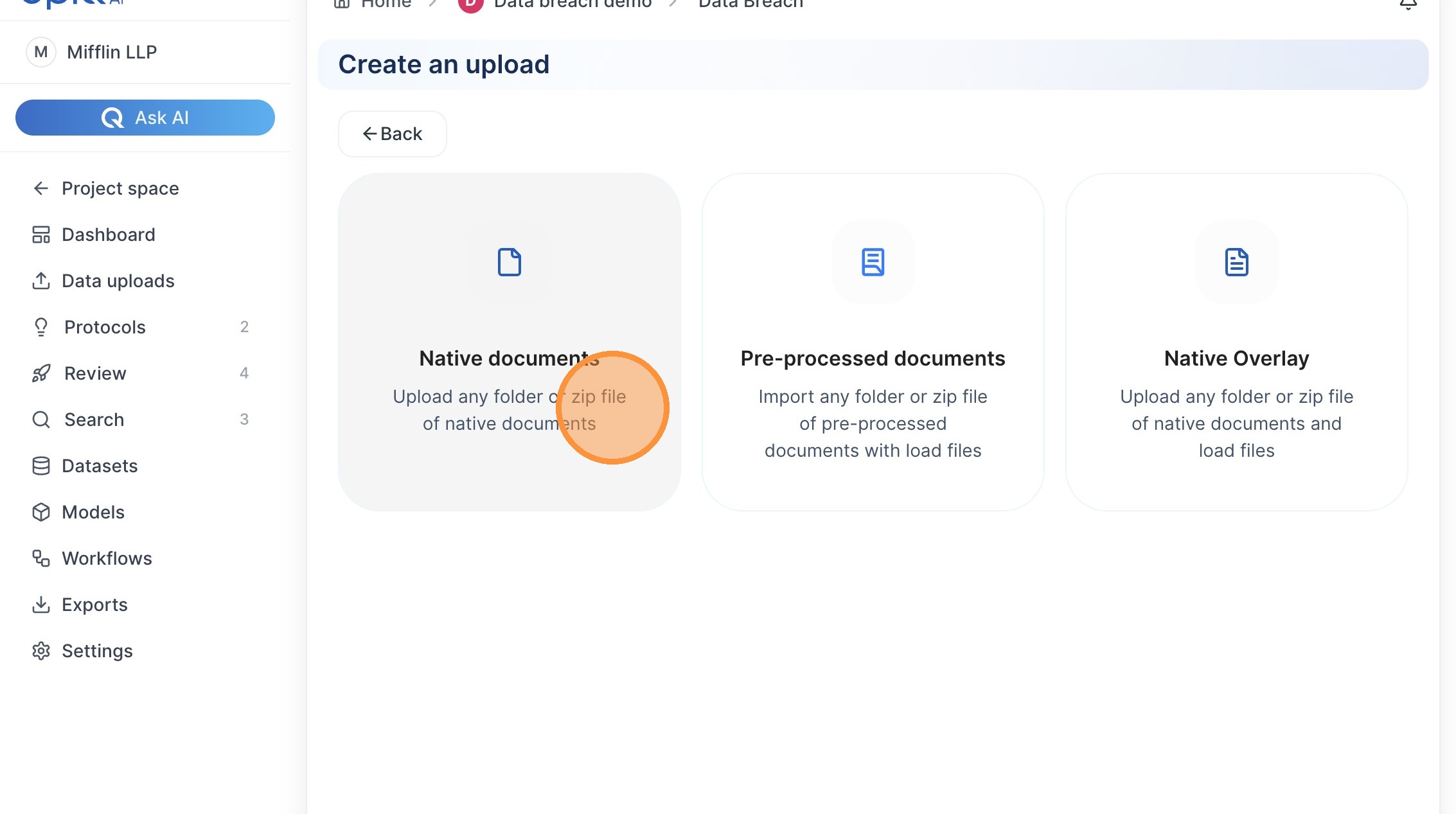
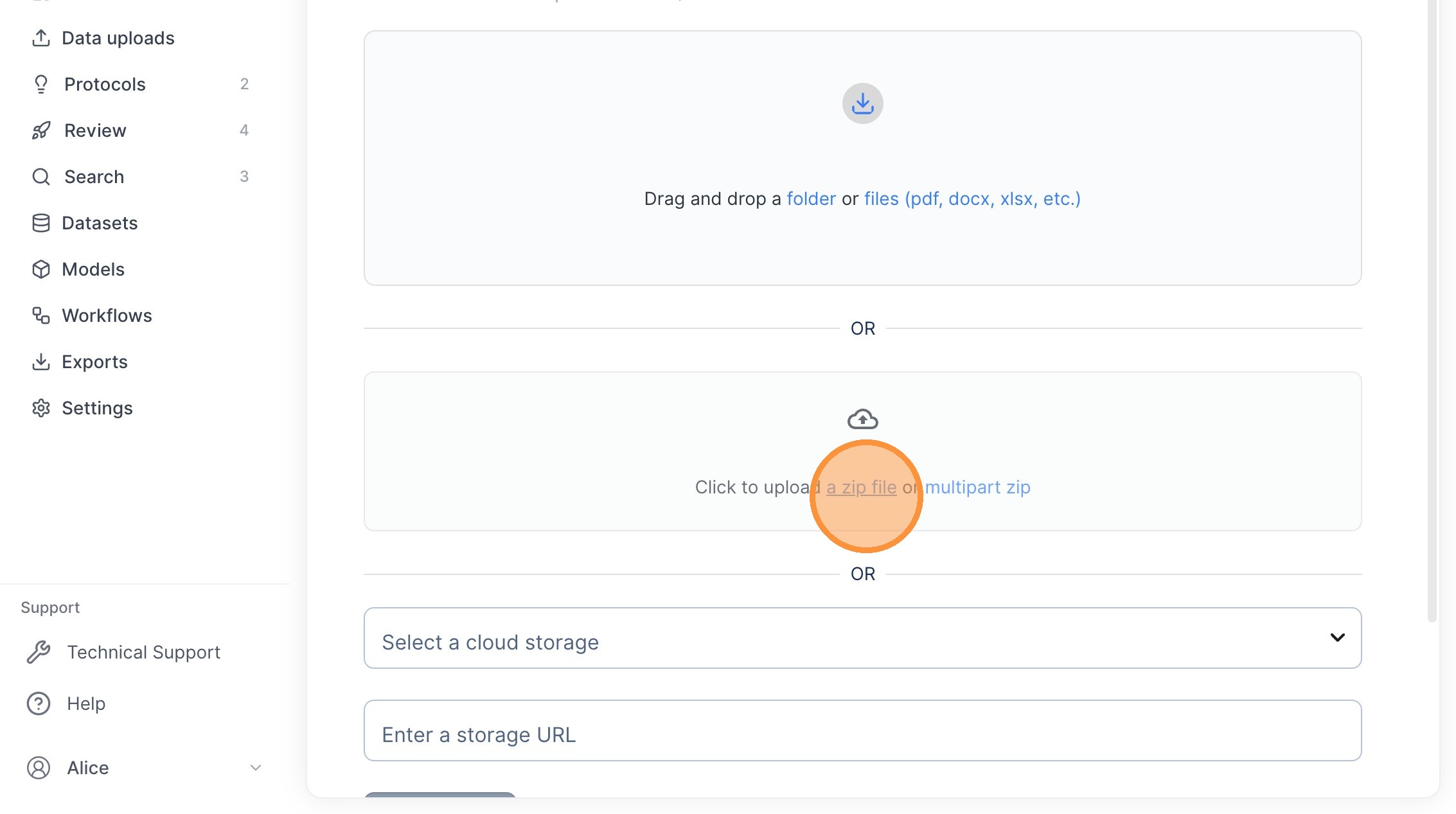
 Click “Upload any folder or zip file of native documents”
 Click the “Upload Name” field.
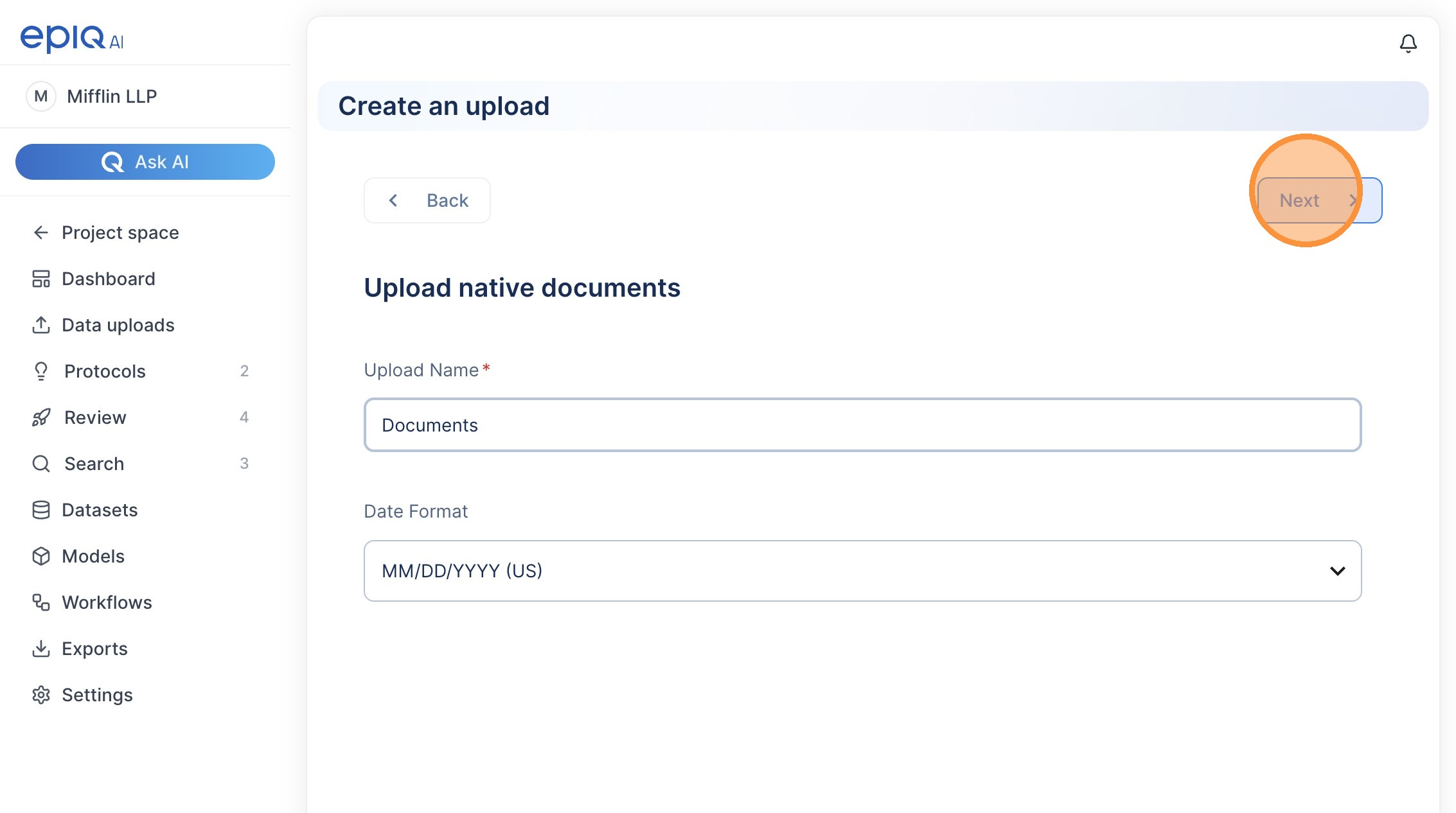
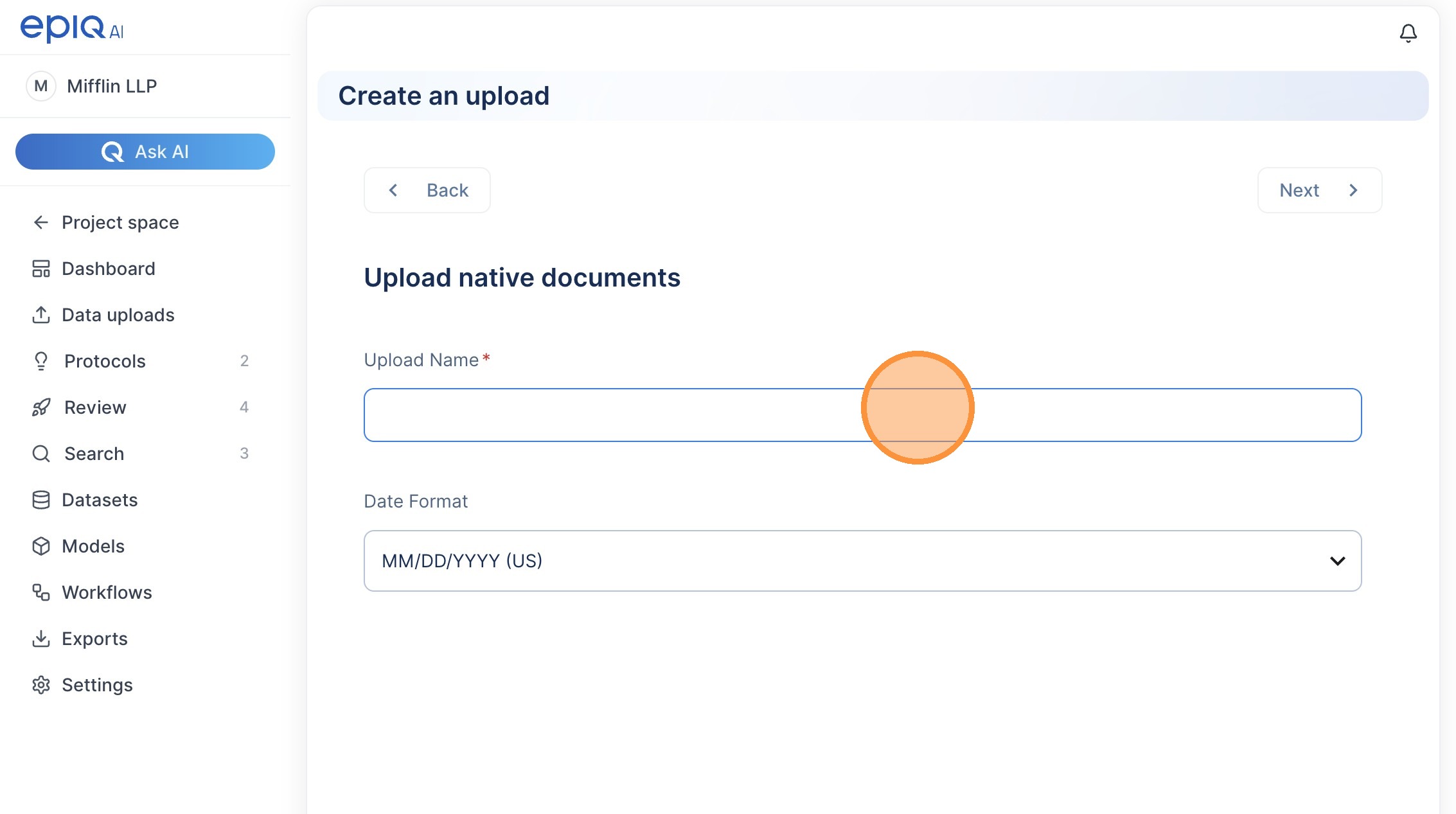 Click “Upload”
 Click “a zip file”
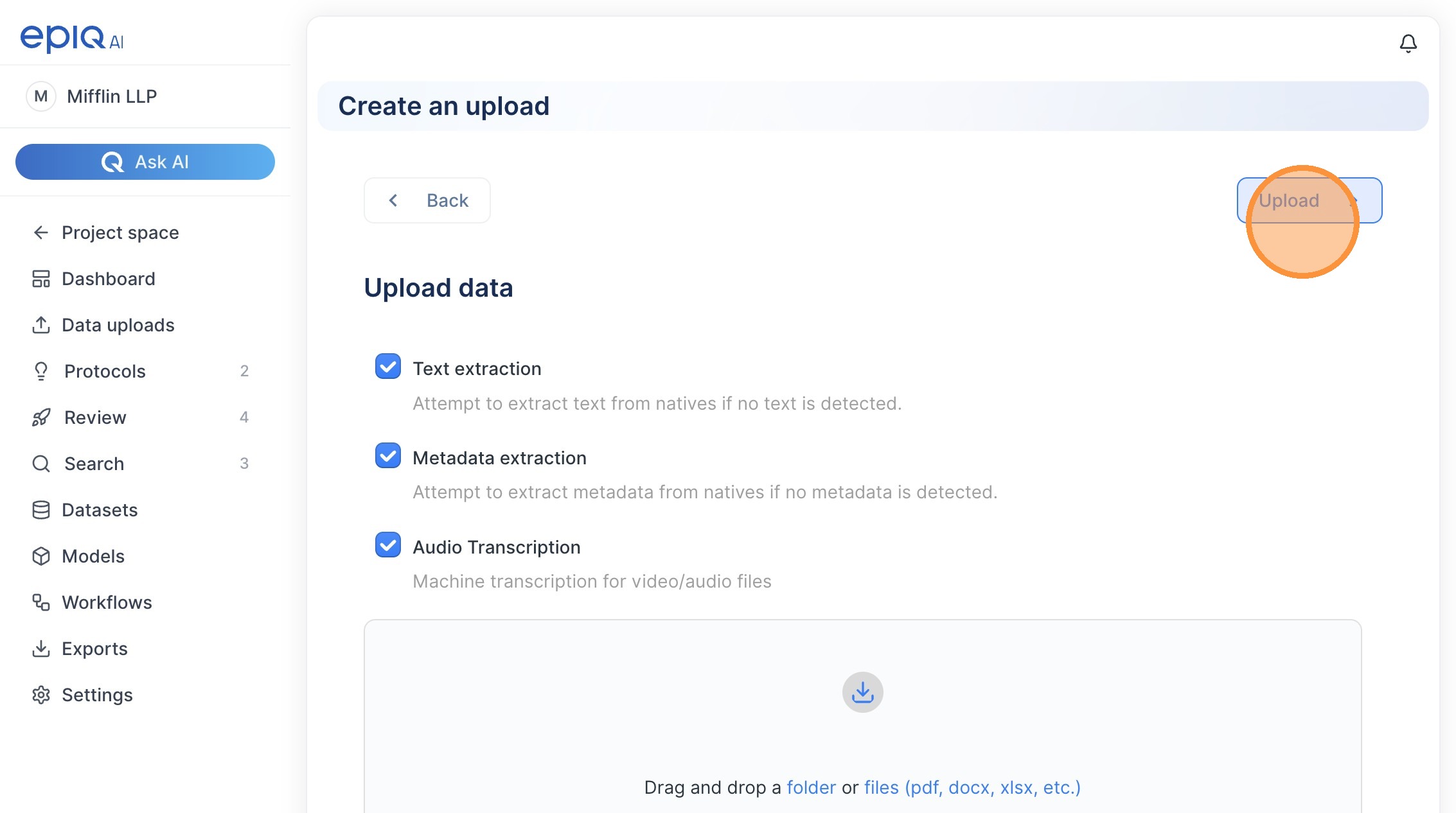
 Click “Upload”
 Click this icon.
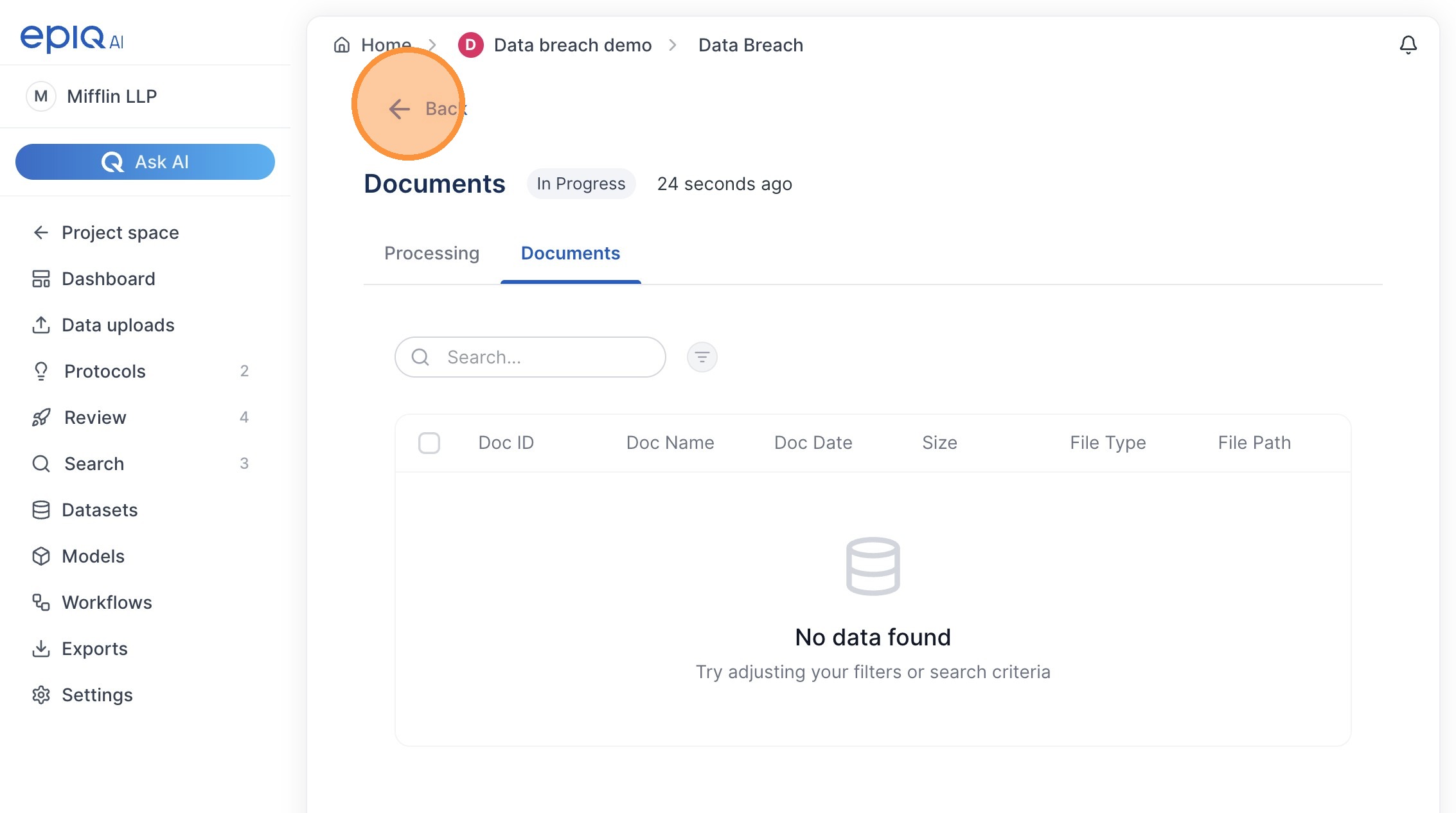 Click “Workflows”
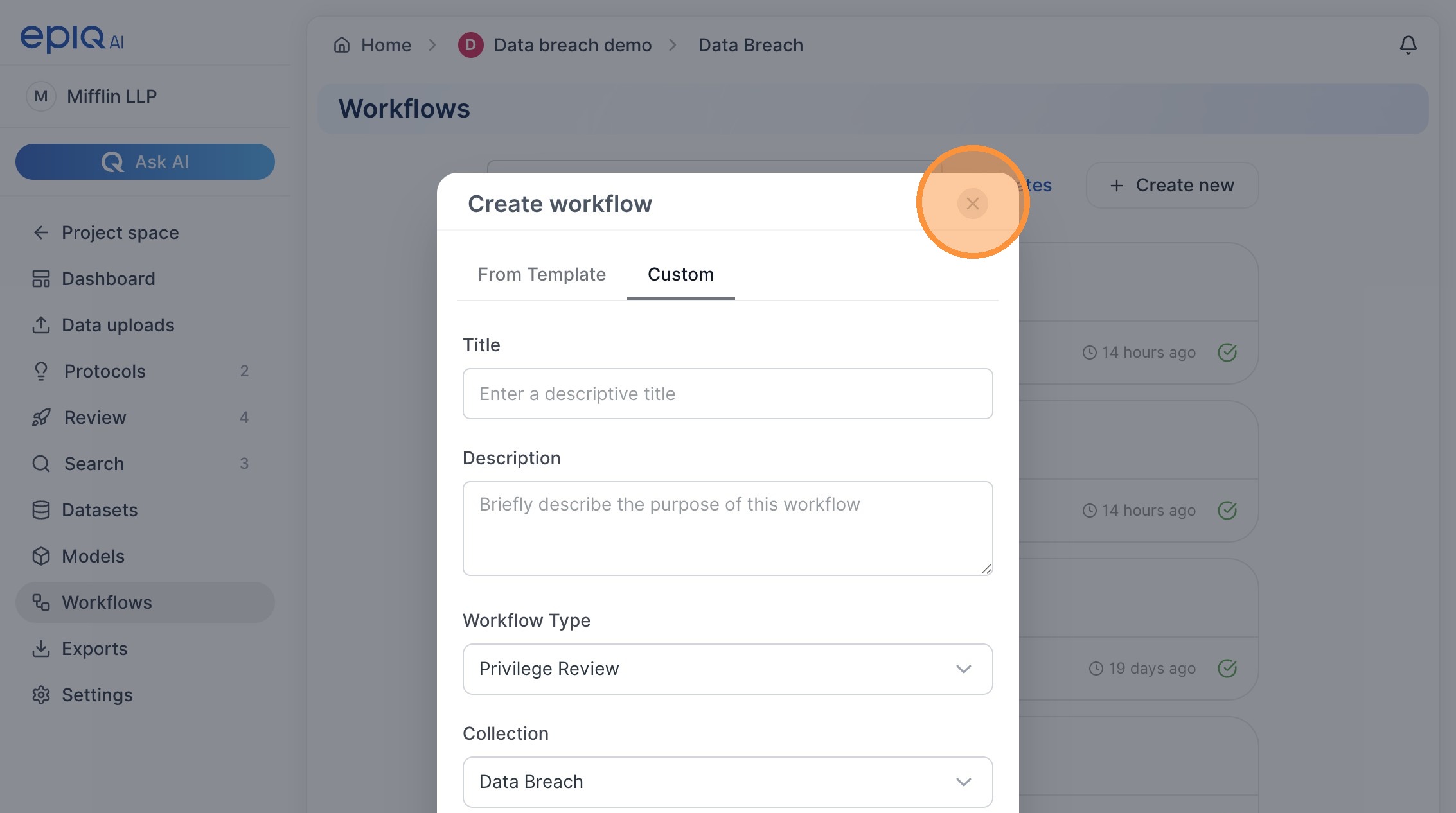
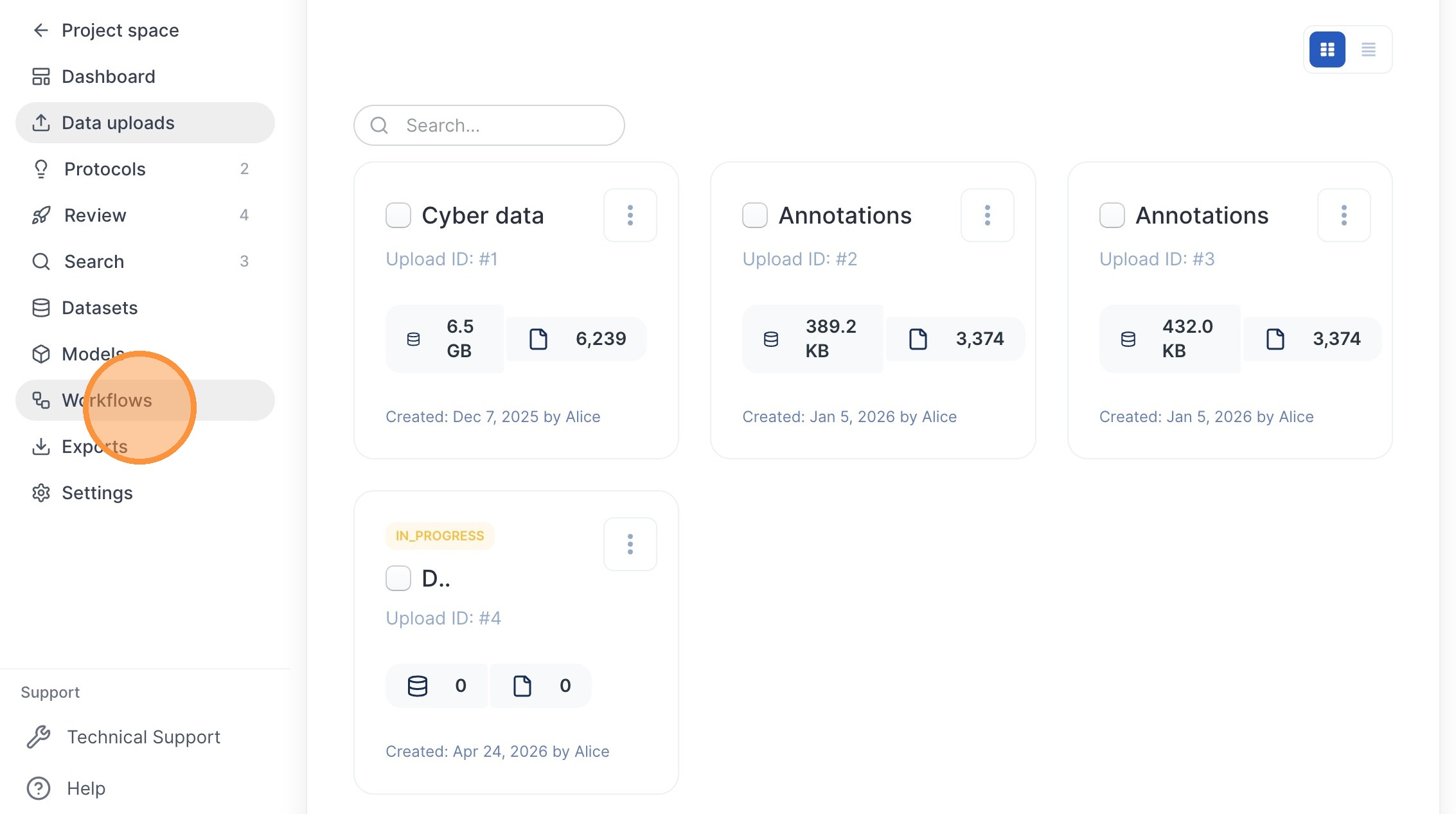 Click “Create new”
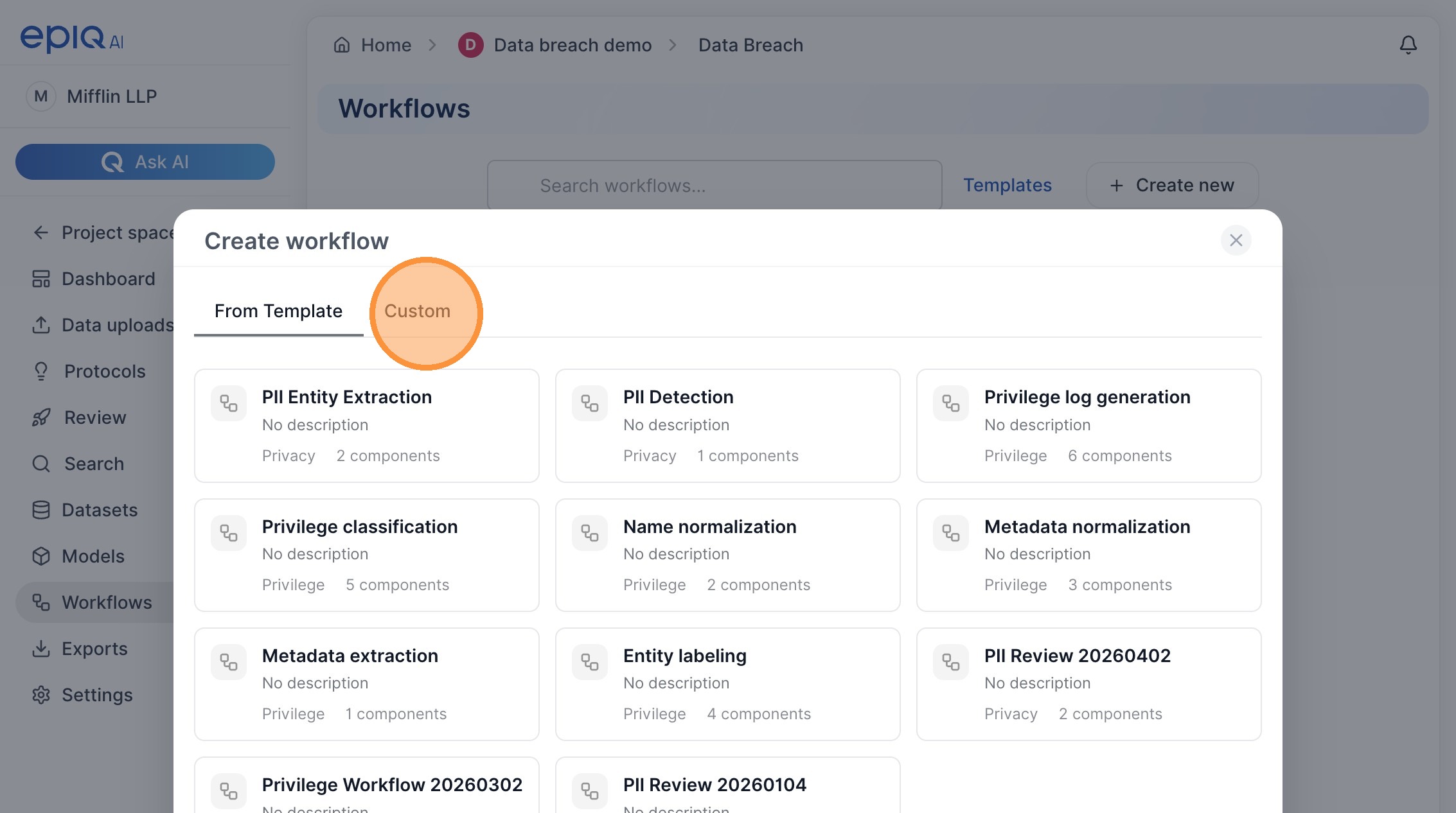
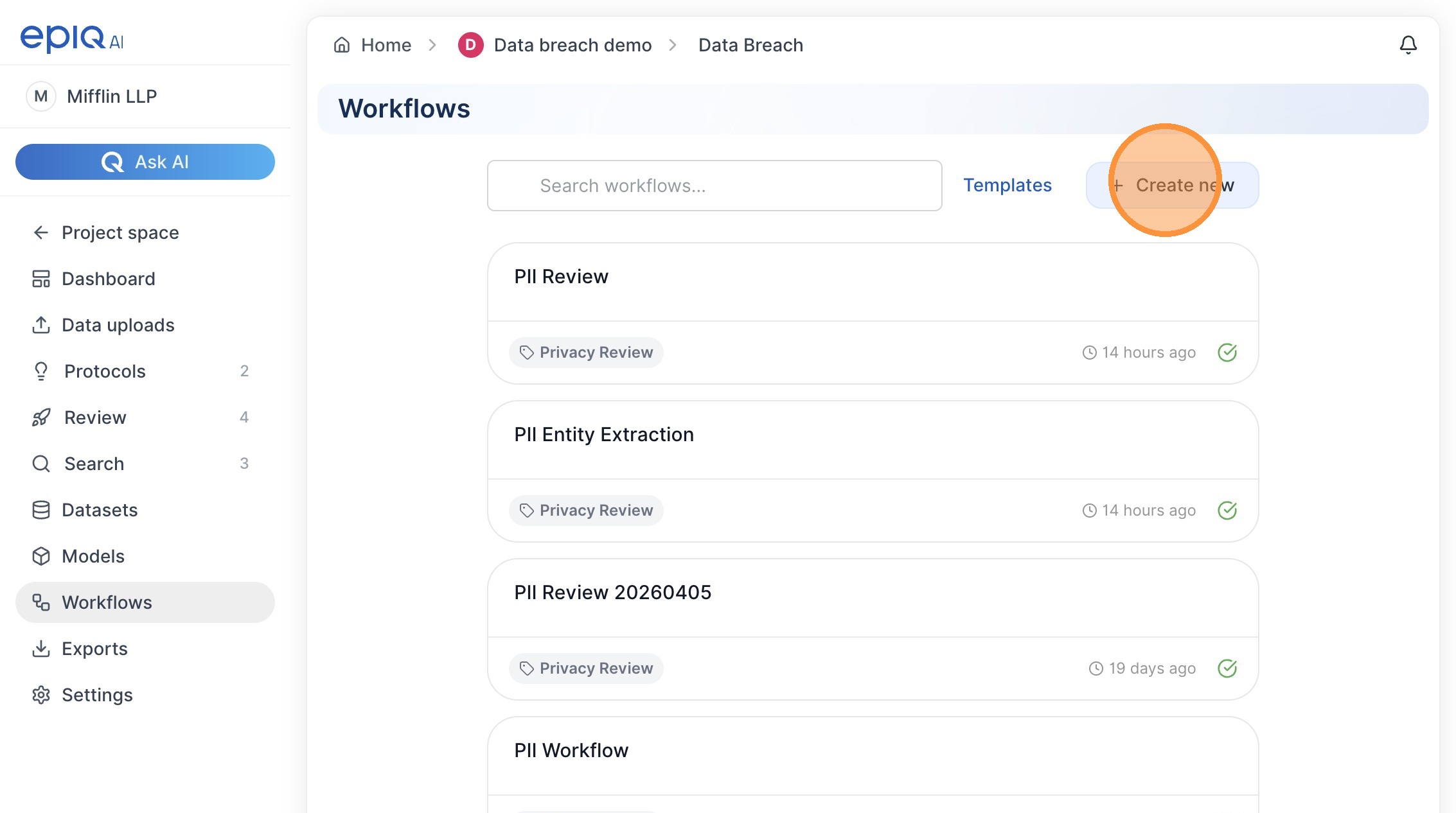 Click “Custom”
 Click here.
How to Create and Run a PII Detection Workflow
Learn how to set up a custom privacy review workflow for detecting personally identifiable information in your documents. This guide covers the end-to-end process from selecting a template to configuring settings and exporting your final results. 1. Click “Create new”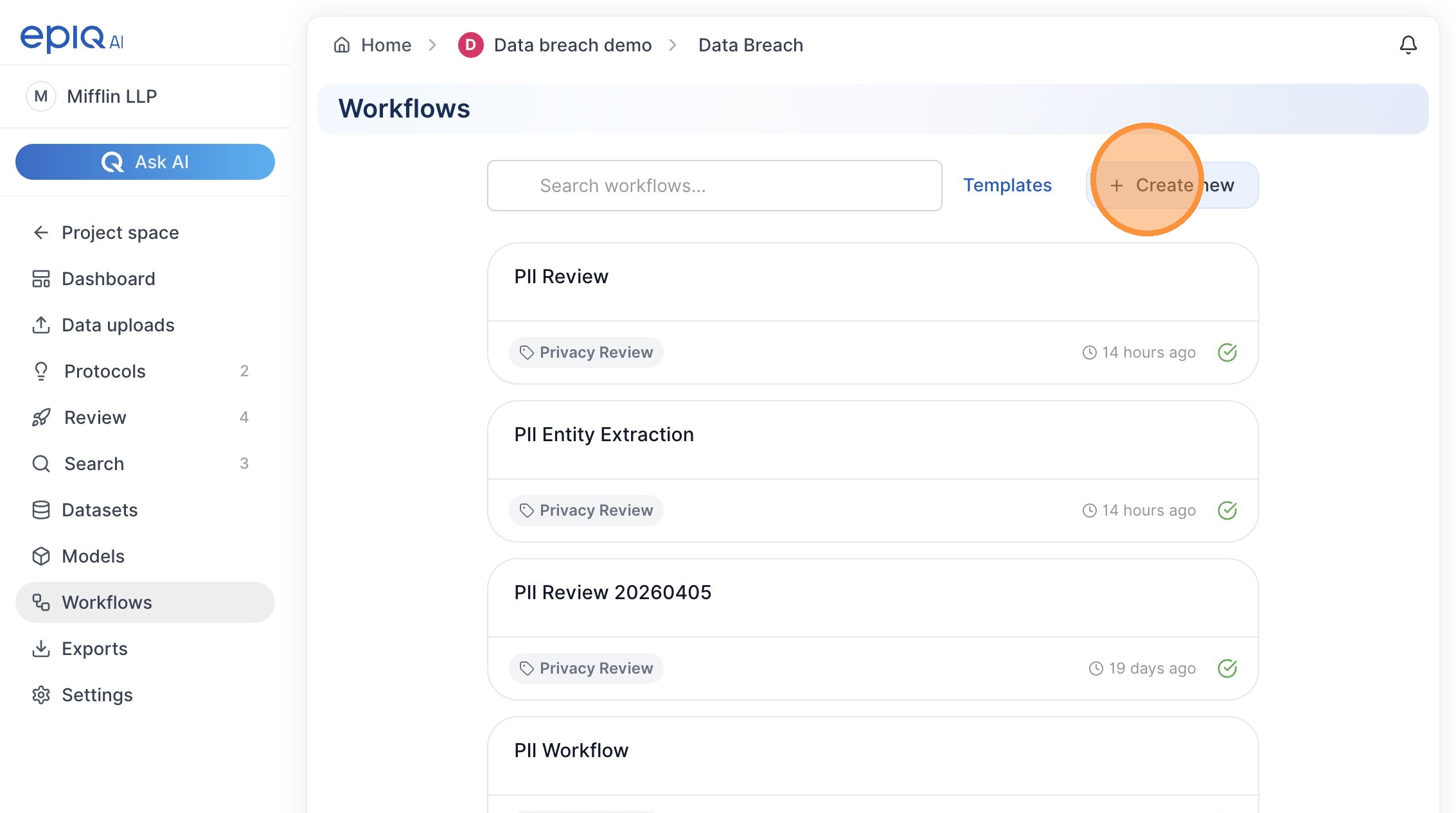 2. Select the ‘PII Entity Extraction’ template.
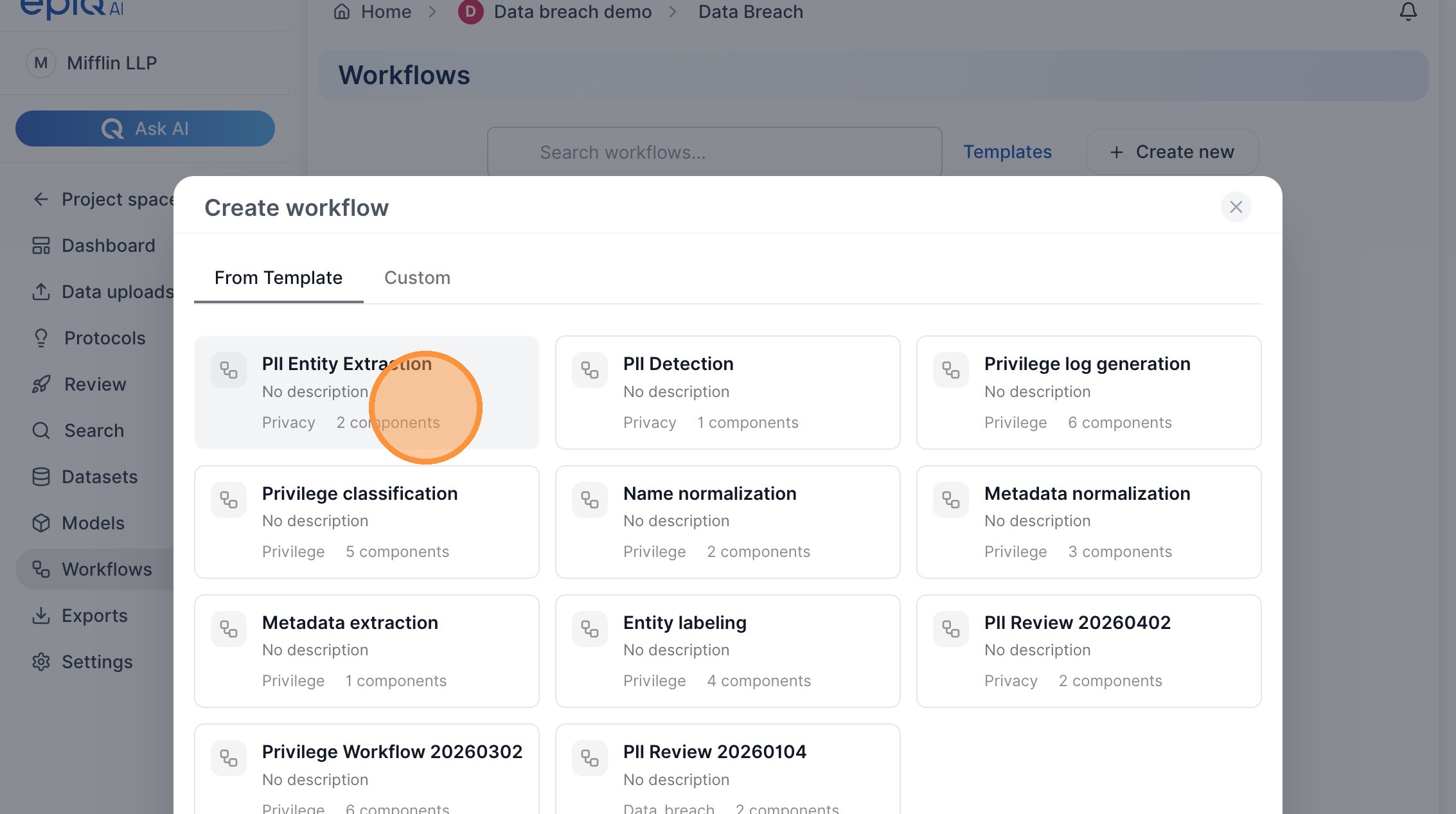 3. Click “Create Workflow”
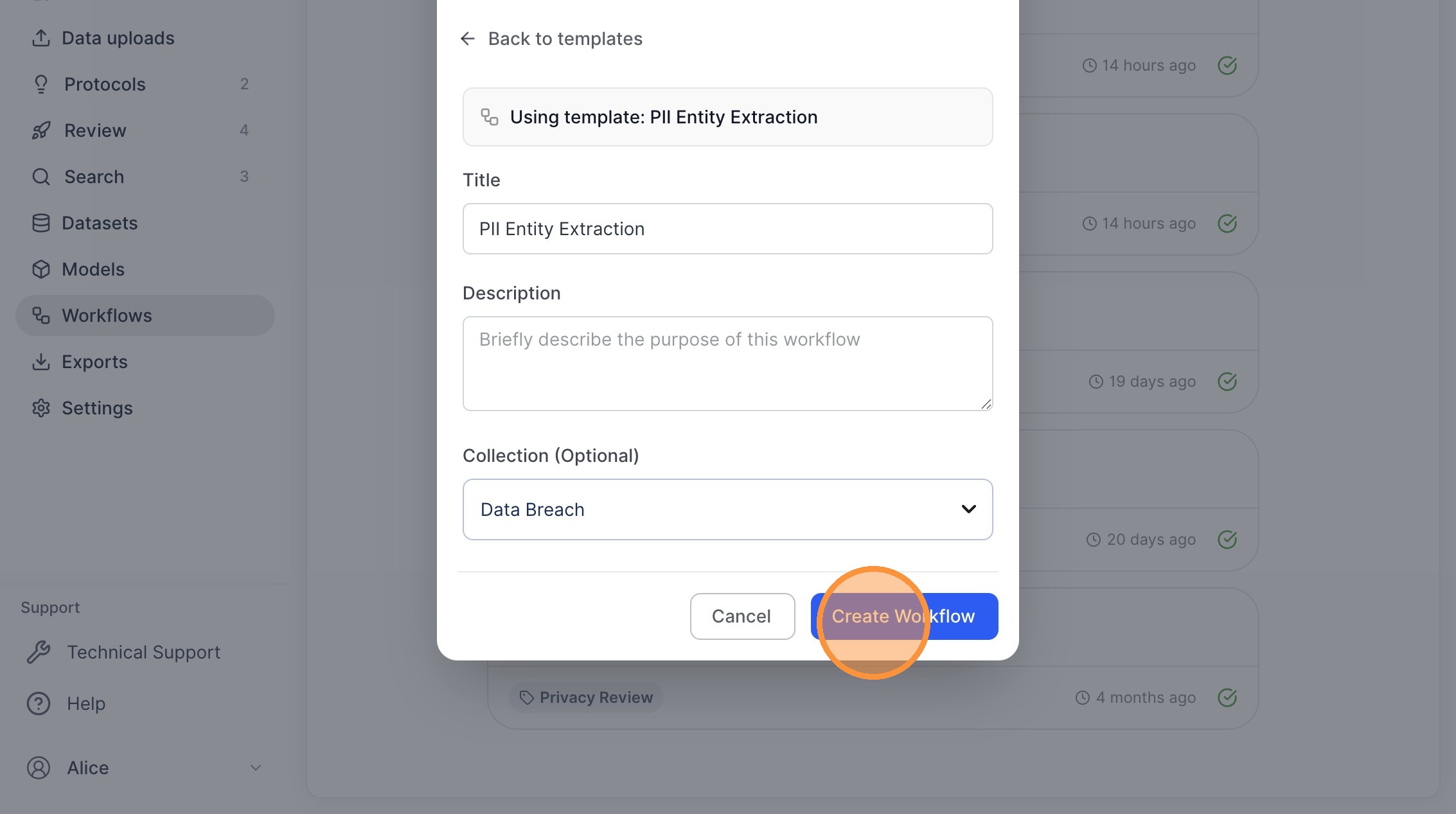 4. Select the newly created workflow.
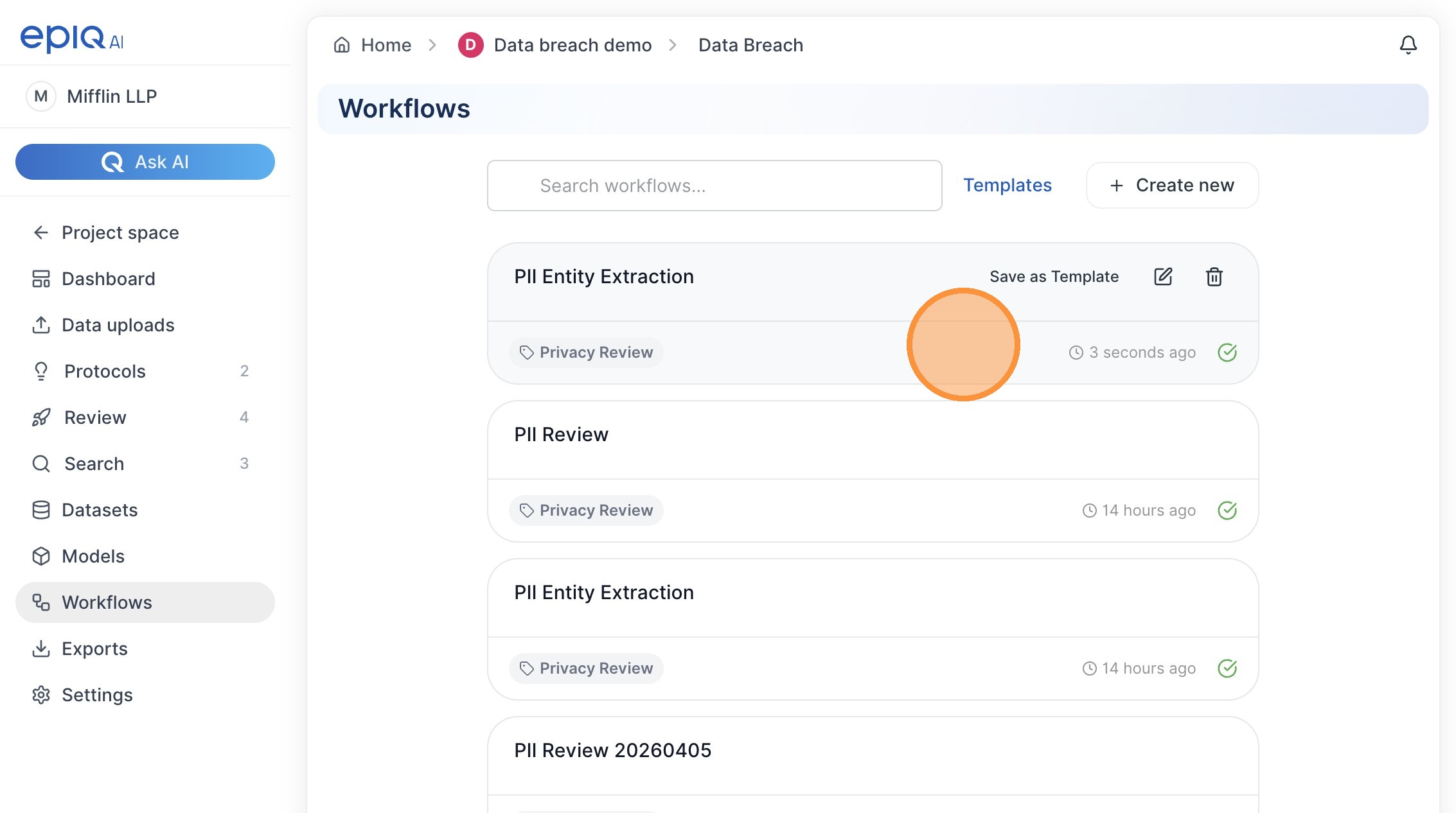 Data Import
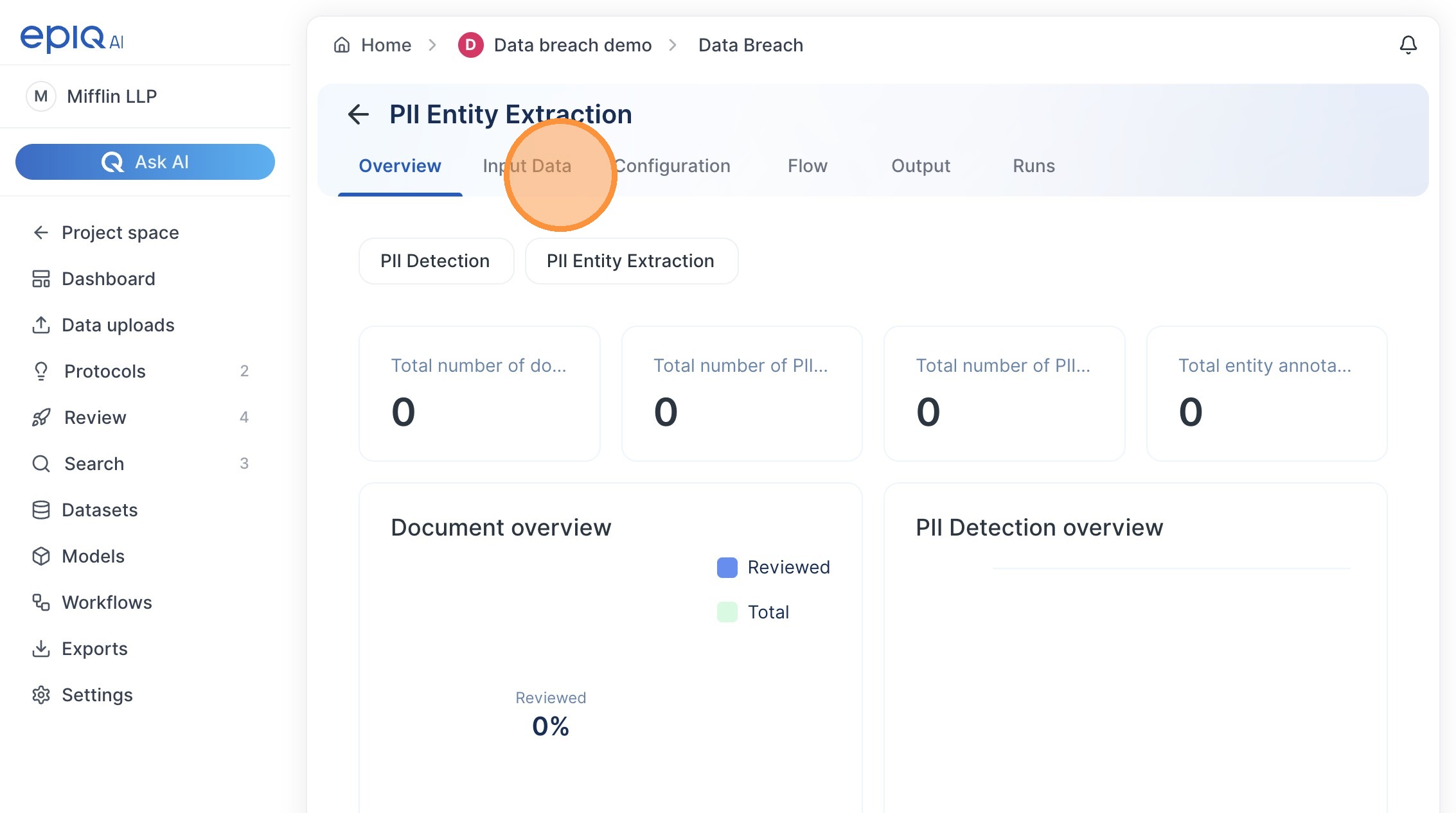
5. Navigate to the ‘Input Data’ tab.
Data Import
5. Navigate to the ‘Input Data’ tab.
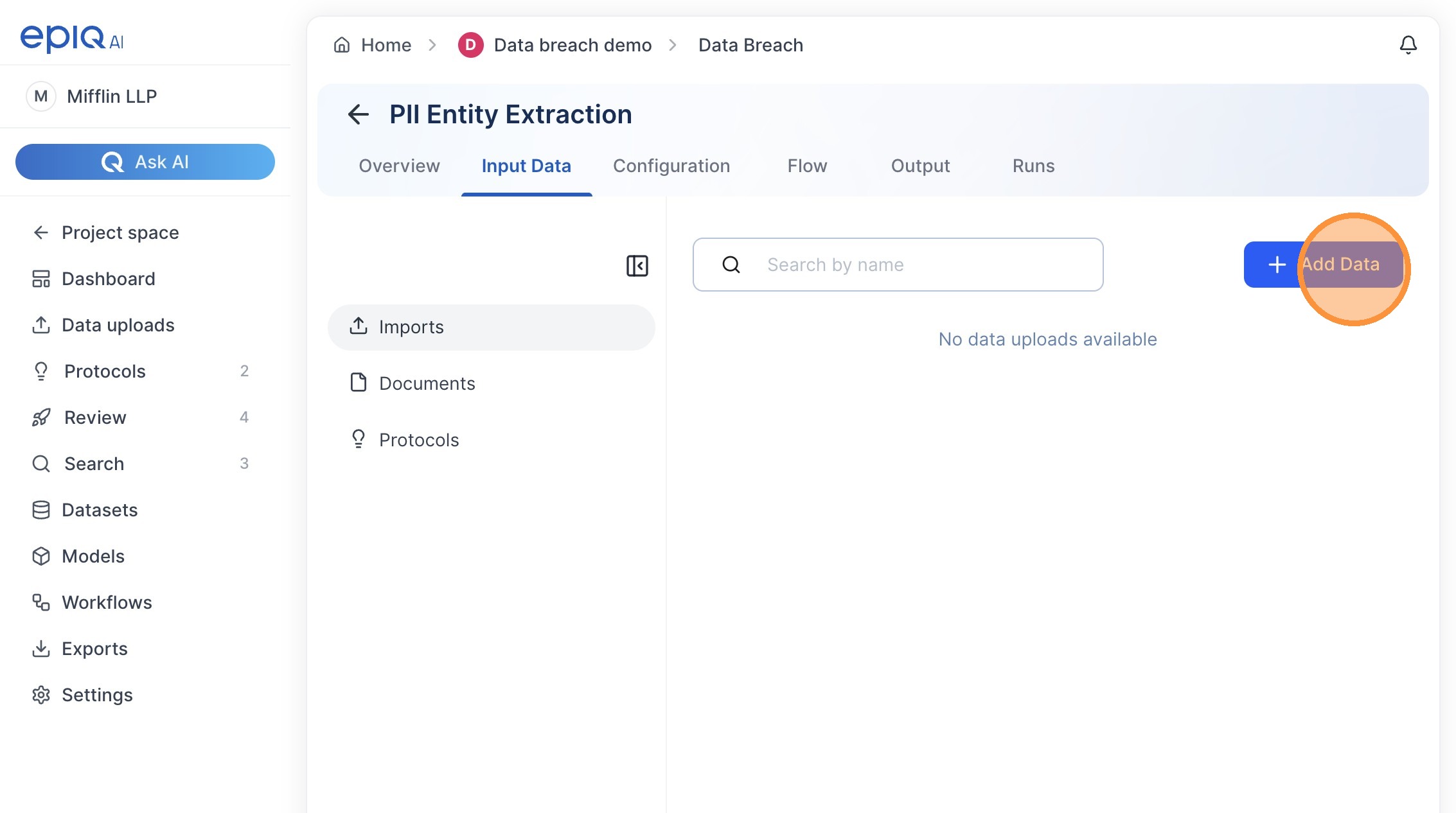
 6. Click “Add Data”
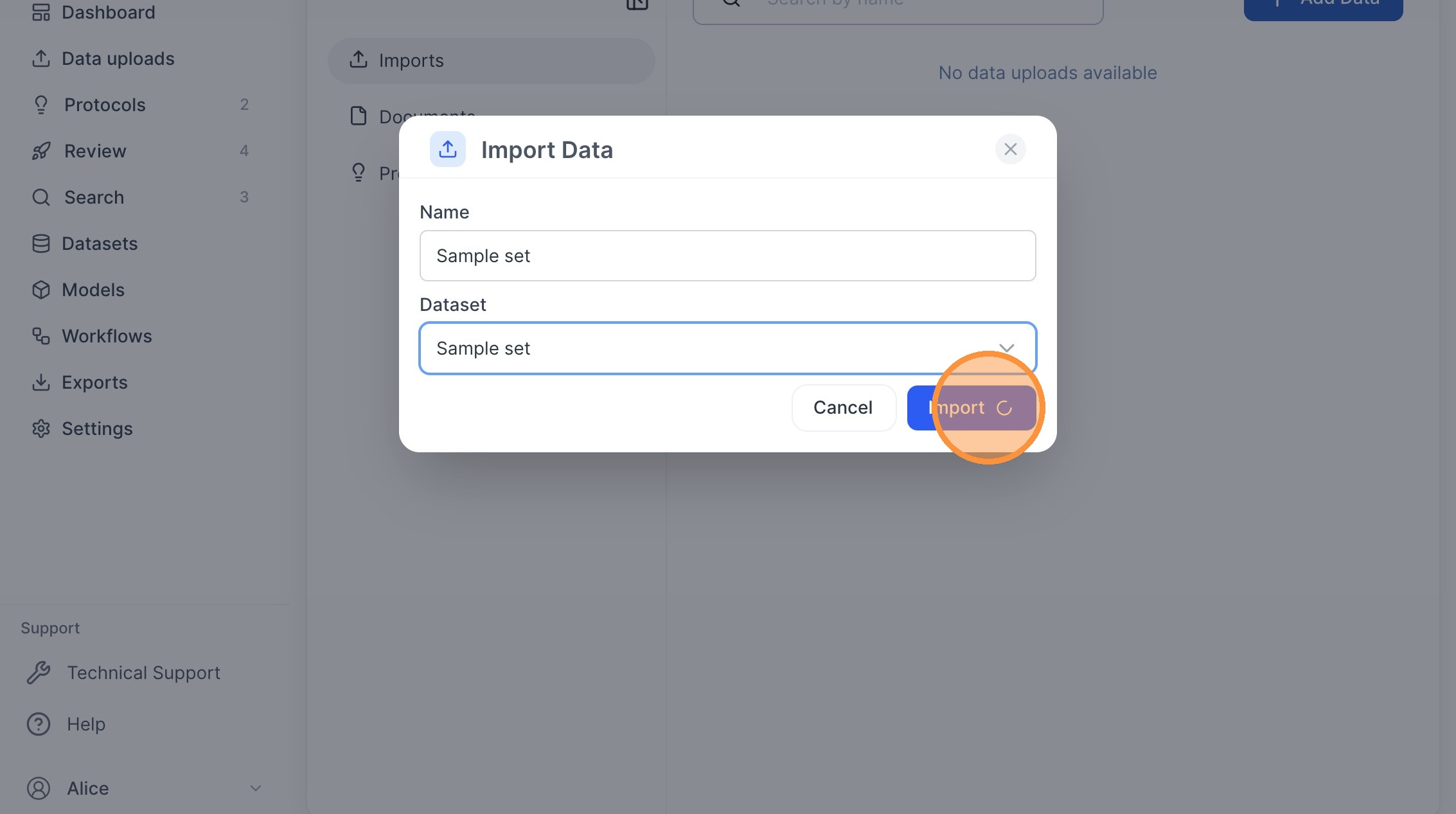
 7. Enter ‘Sample set’ as the import name.
8. Select ‘Sample set’ from the Dataset dropdown.
7. Enter ‘Sample set’ as the import name.
8. Select ‘Sample set’ from the Dataset dropdown.
 9. Click “Import”
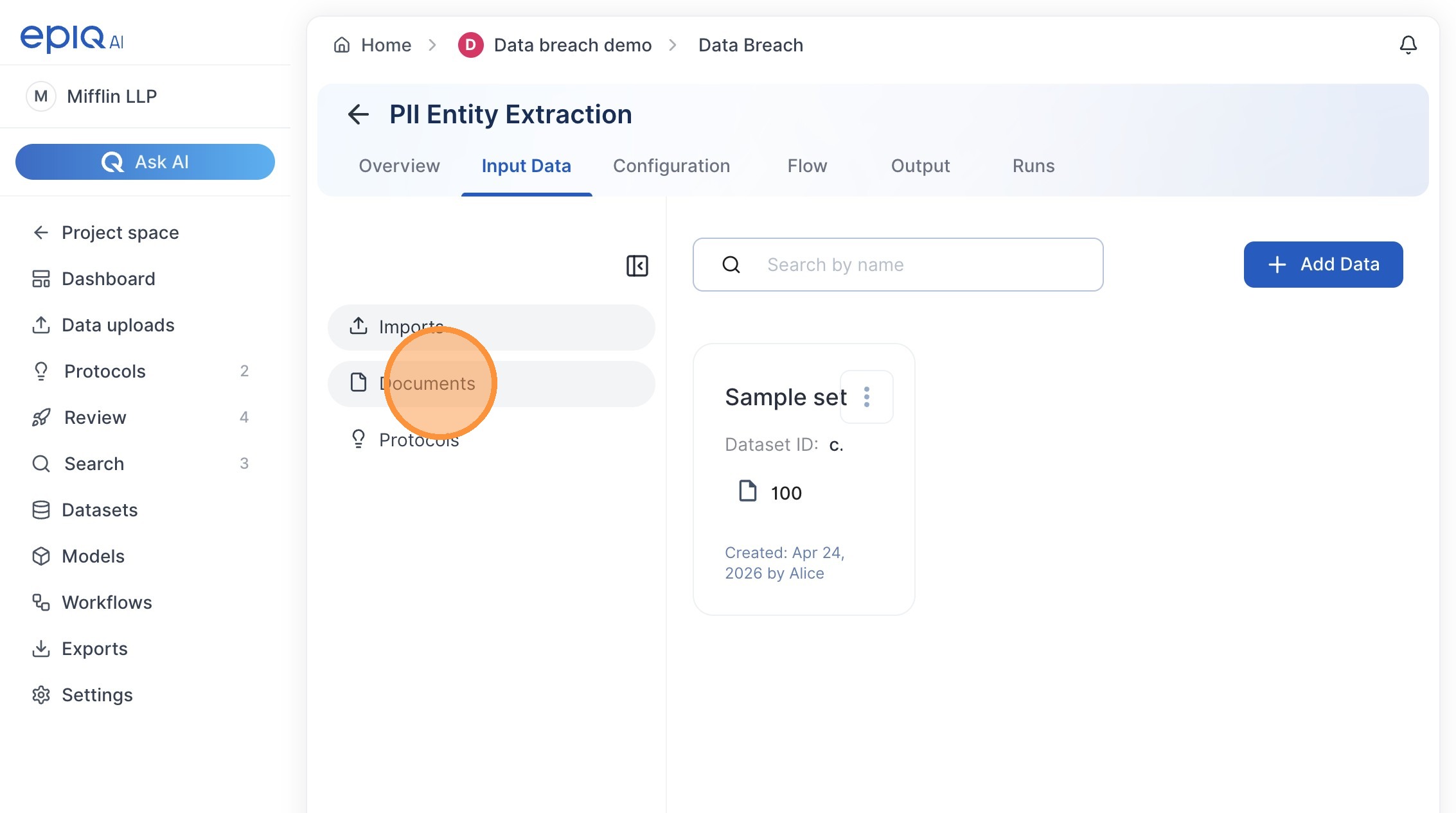
 10. Navigate to the ‘Documents’ section.
 Workflow Configuration
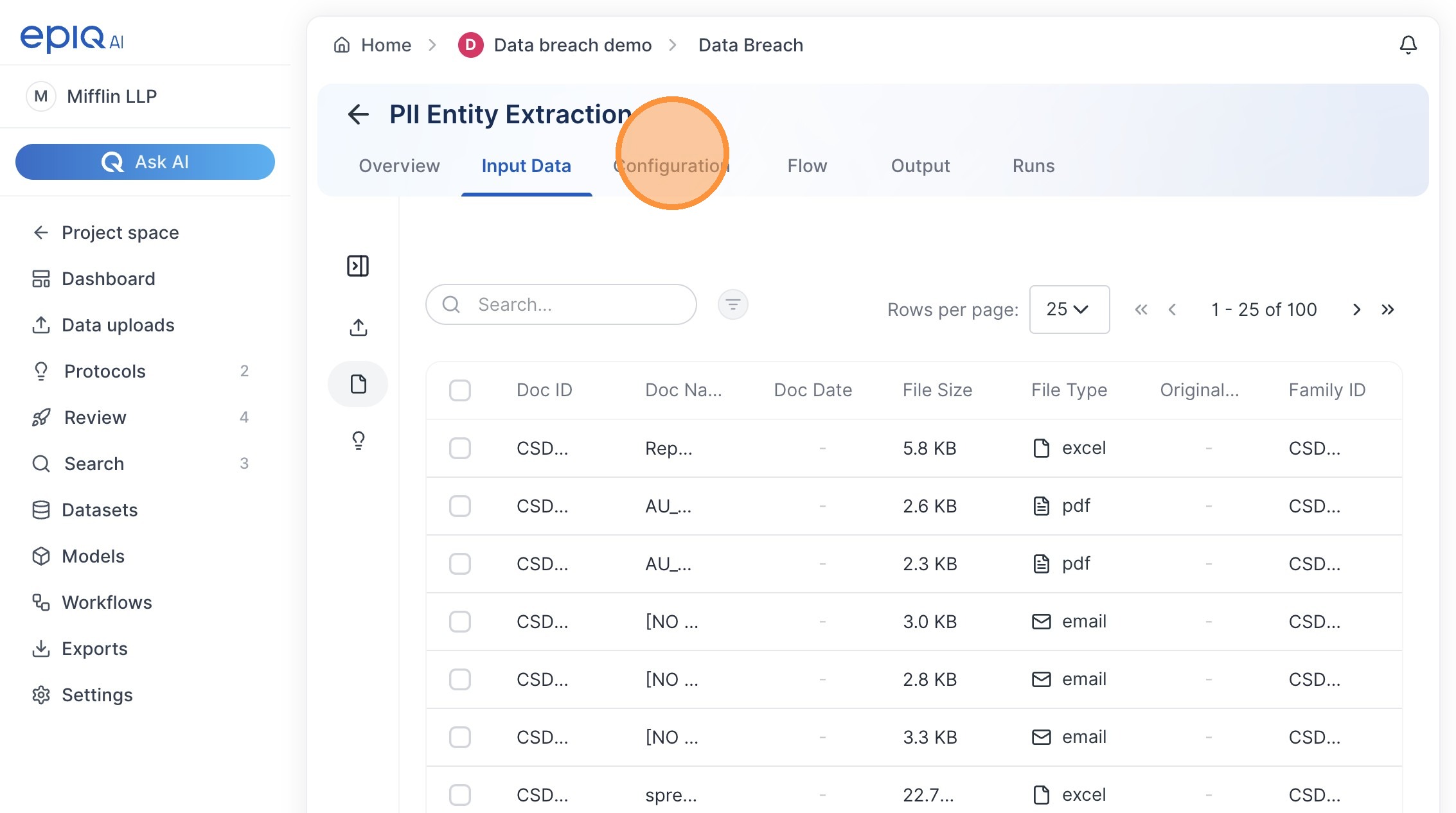
11. Navigate to the ‘Configuration’ tab.
Workflow Configuration
11. Navigate to the ‘Configuration’ tab.
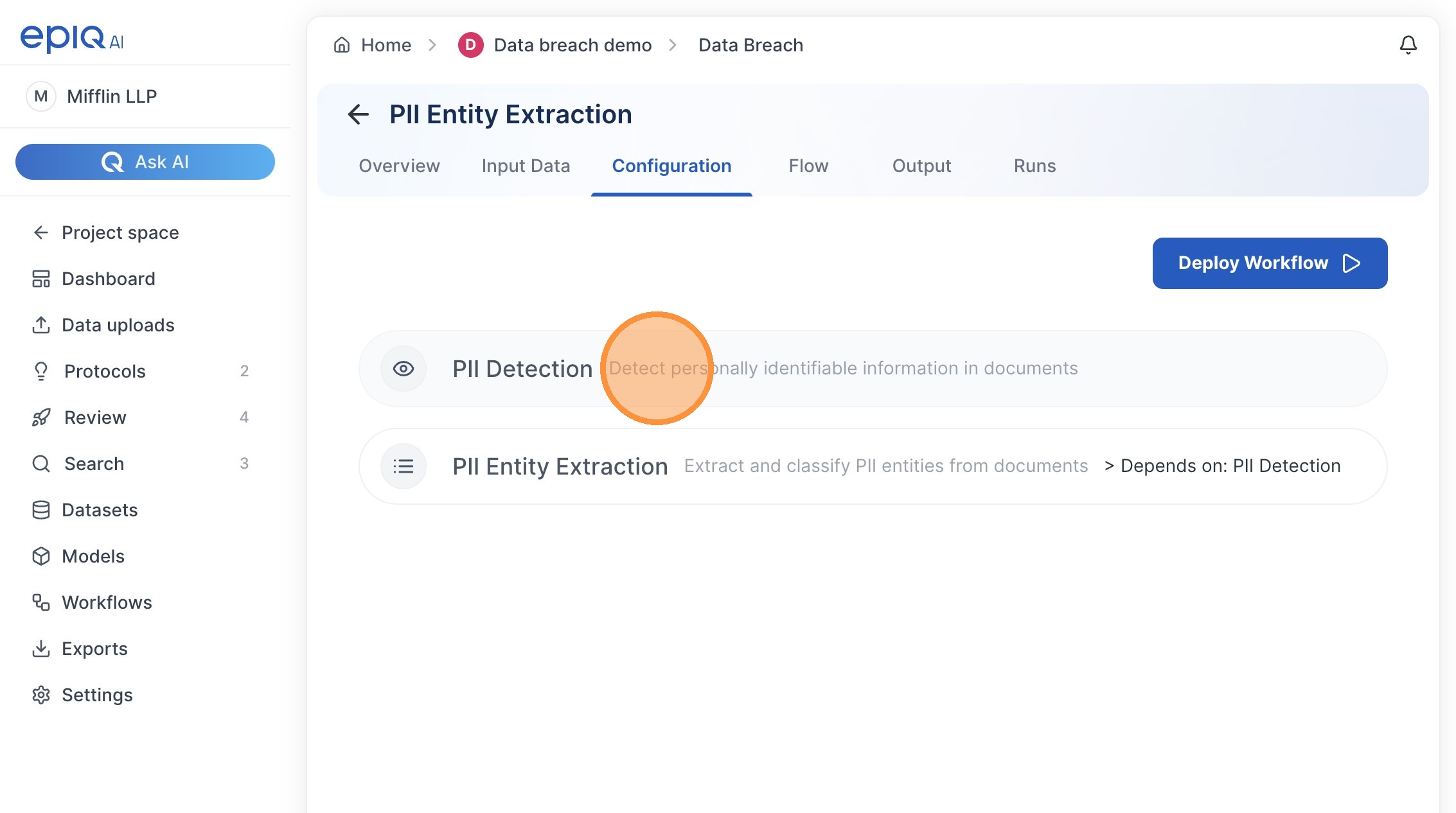
 12. Open the ‘PII Detection’ settings.
 13. Deploy the workflow.
 14. Navigate to the ‘Flow’ tab.
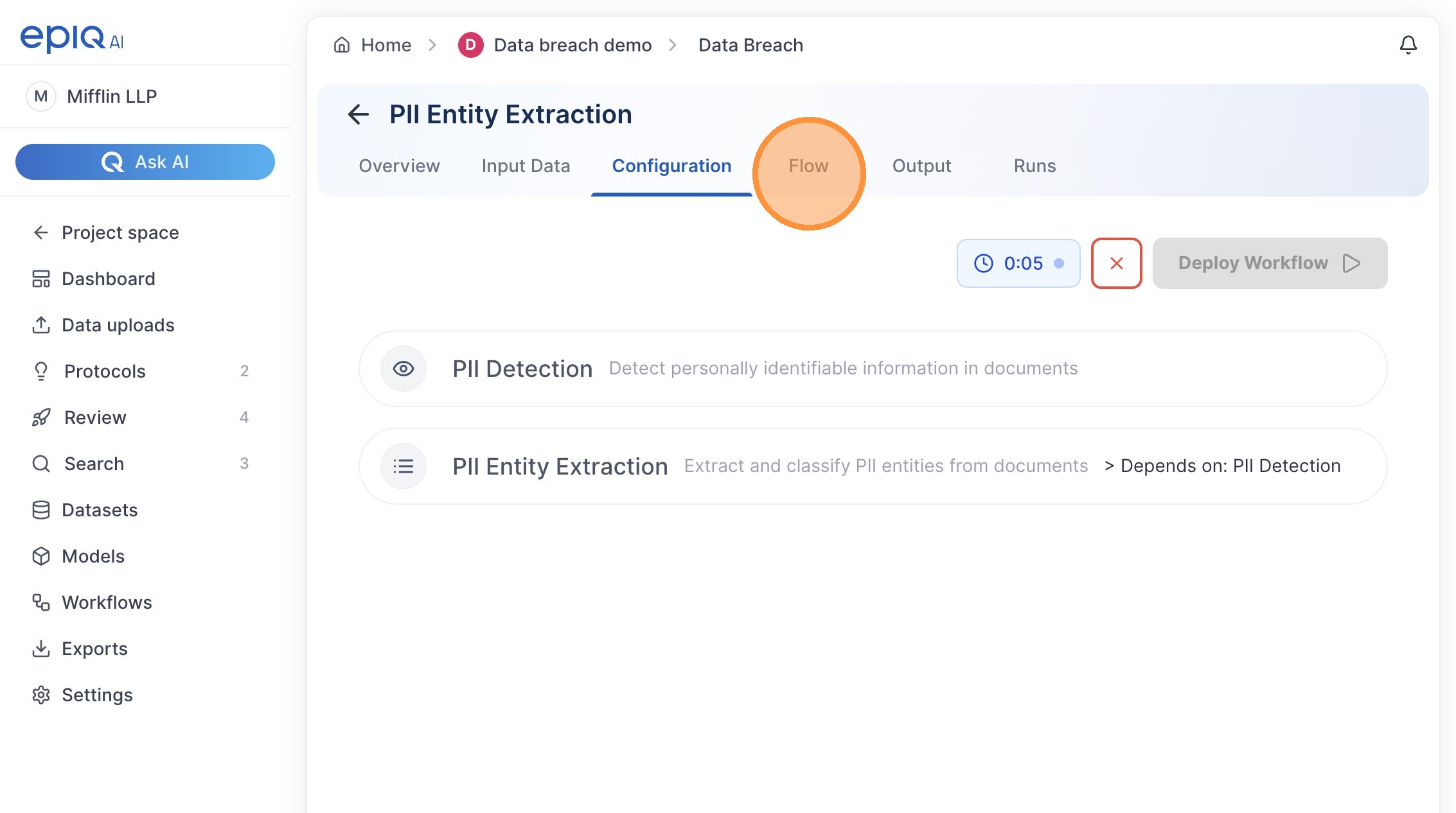 Results Review
15. Open the ‘PII Review’ workflow.
Results Review
15. Open the ‘PII Review’ workflow.
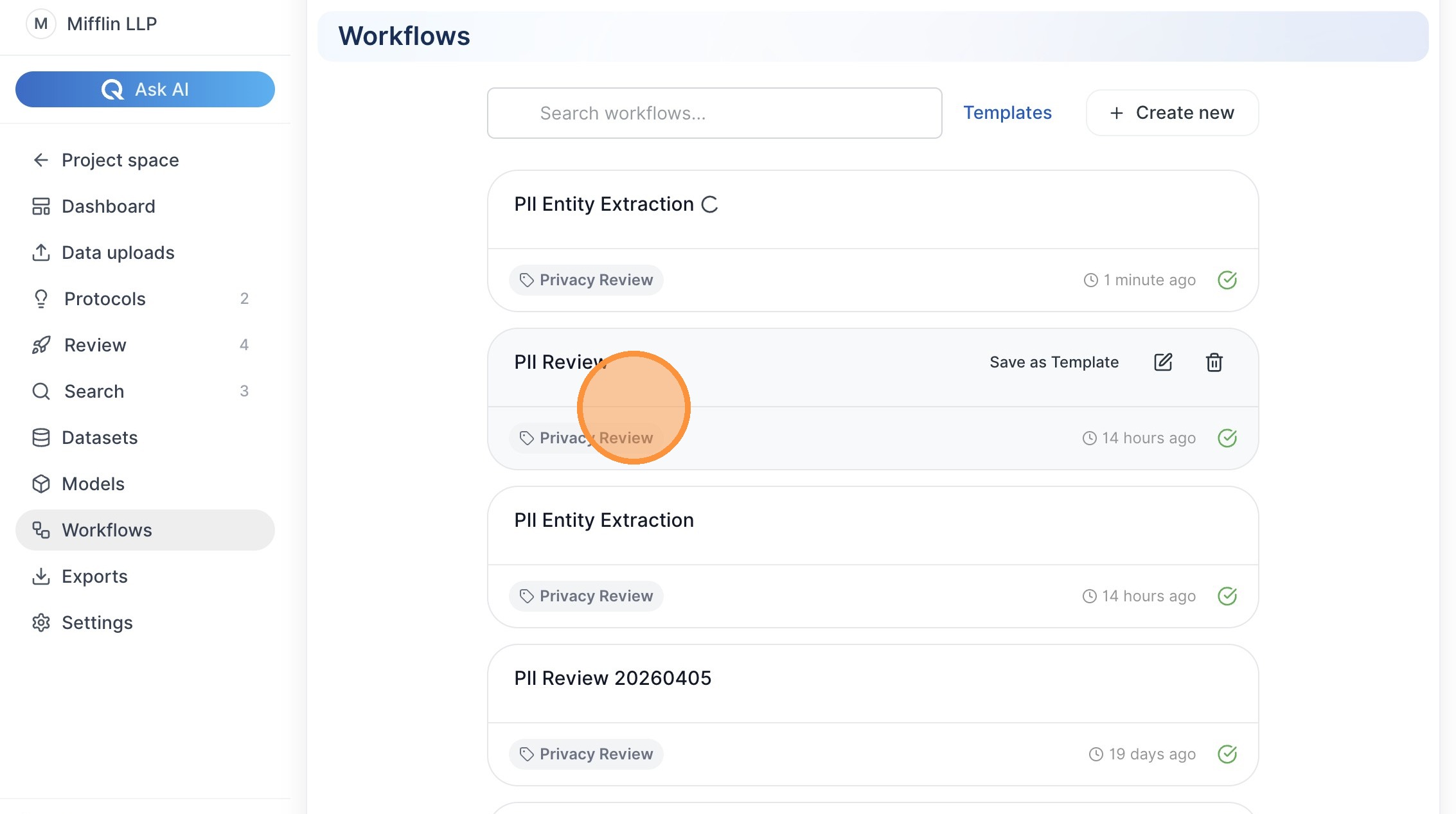 16. Click “Flow”
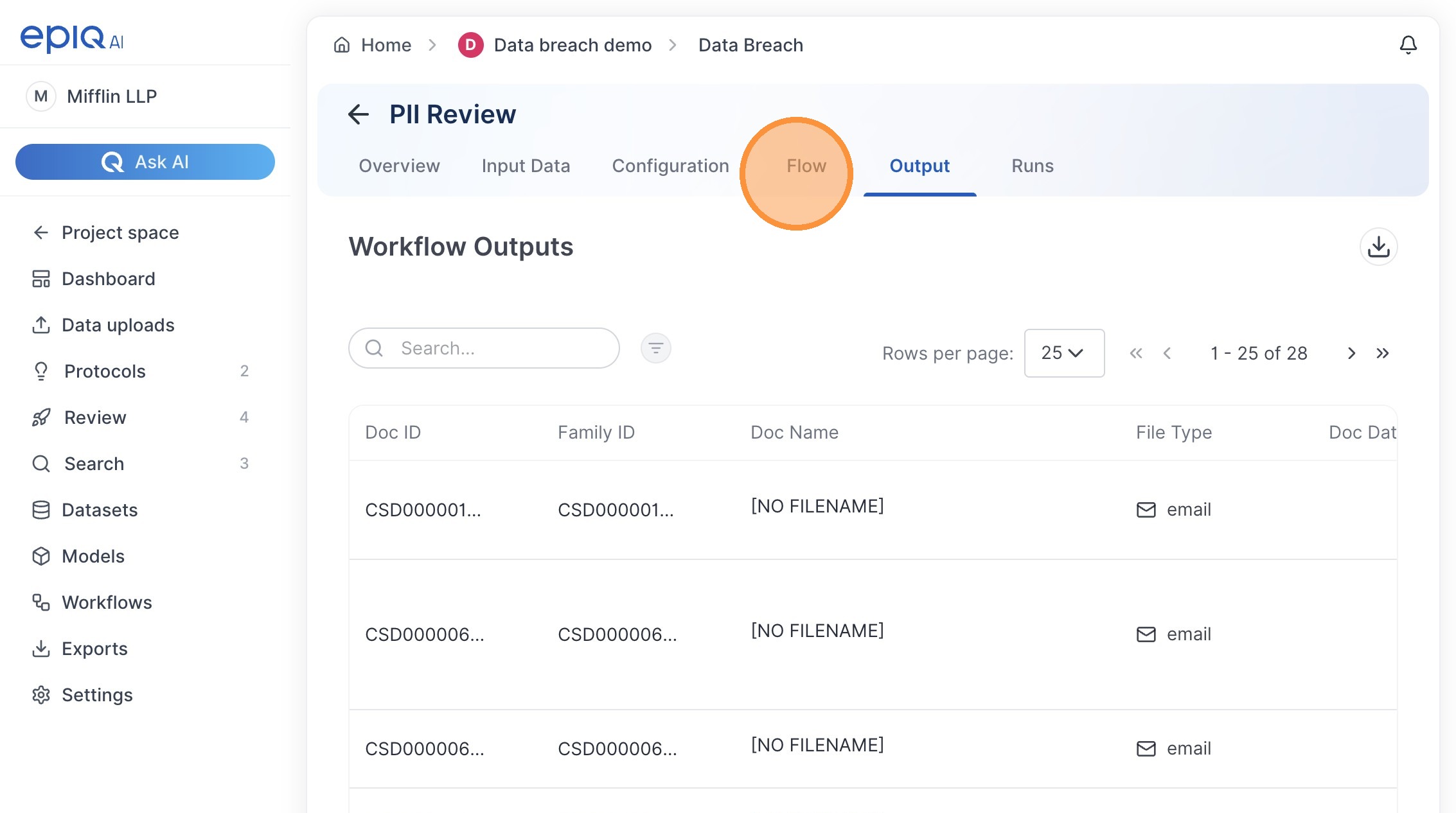 17. Select a document to review detected PII.
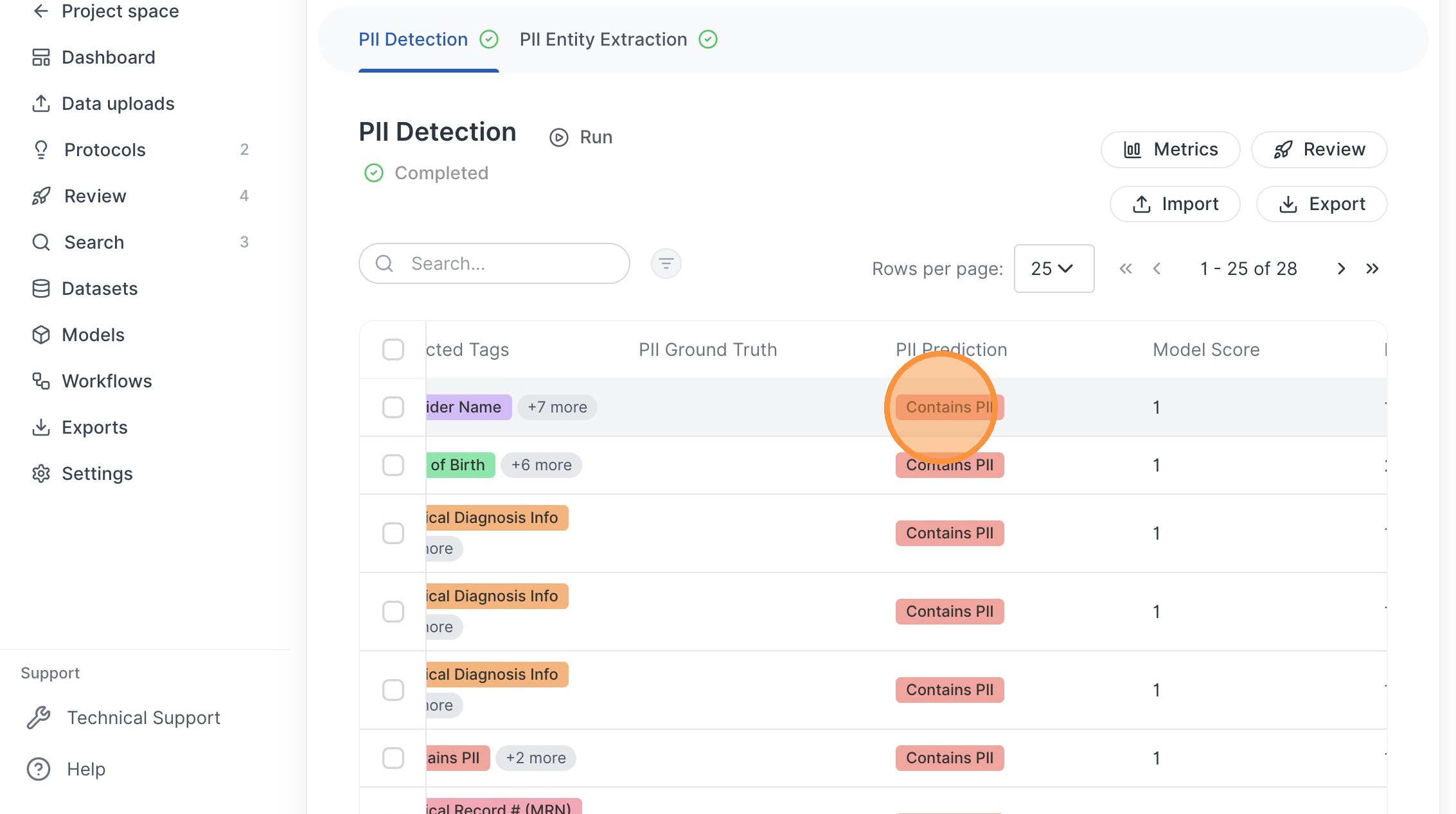 18. Return to the document list.
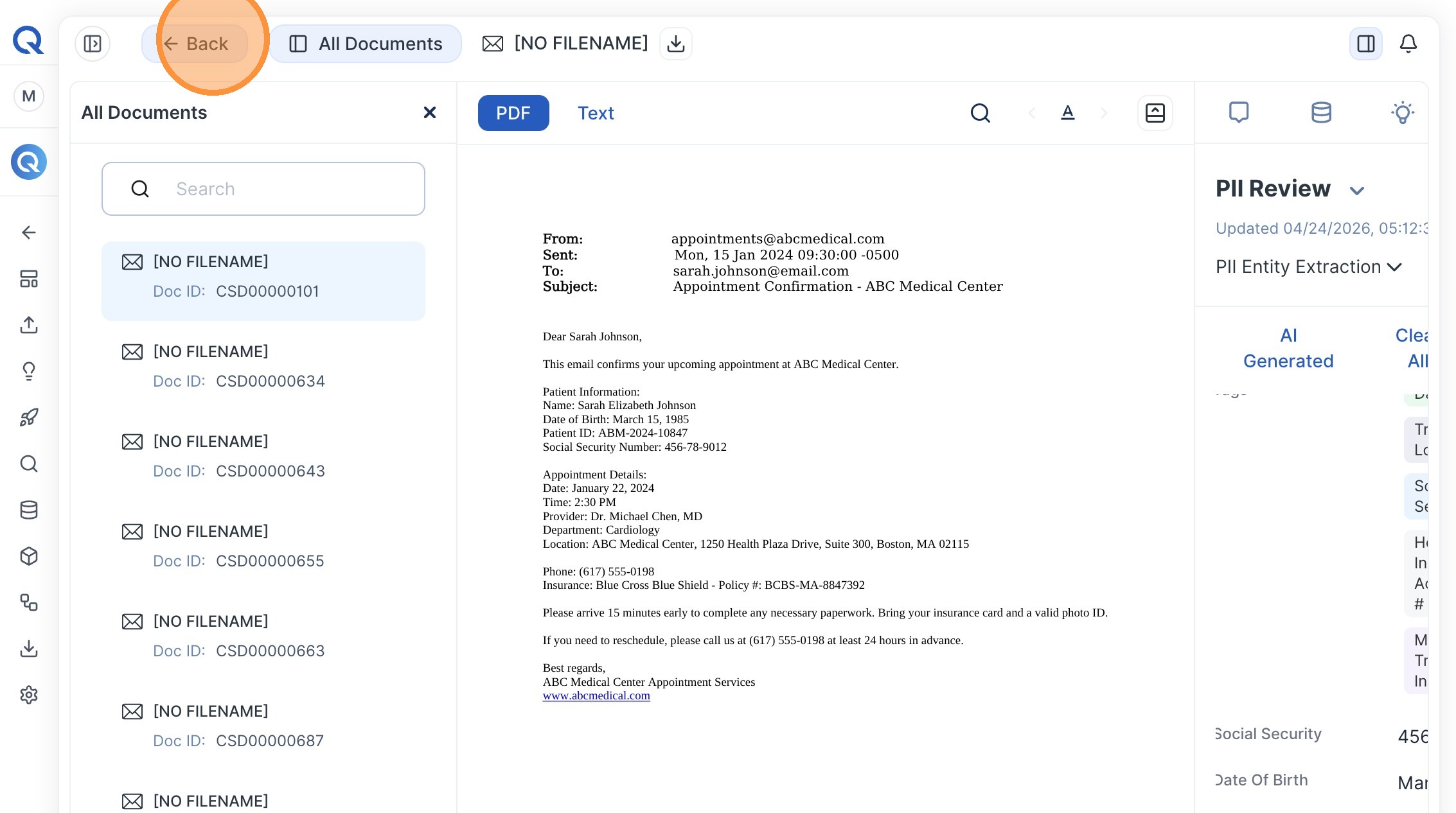 19. Navigate to the ‘Output’ tab.
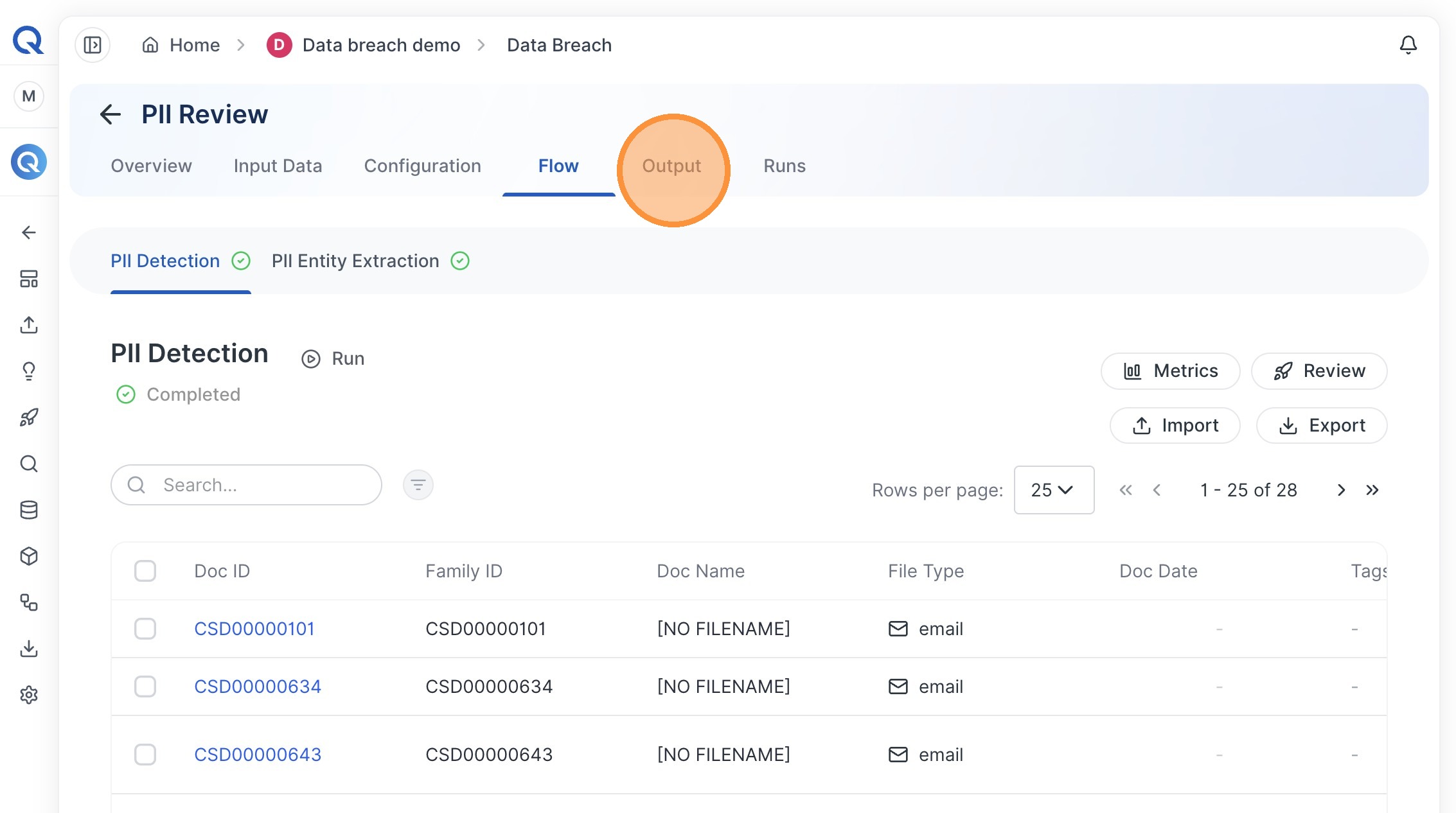 Export Management

20. Export the results as a .CSV file.
Export Management
20. Export the results as a .CSV file.
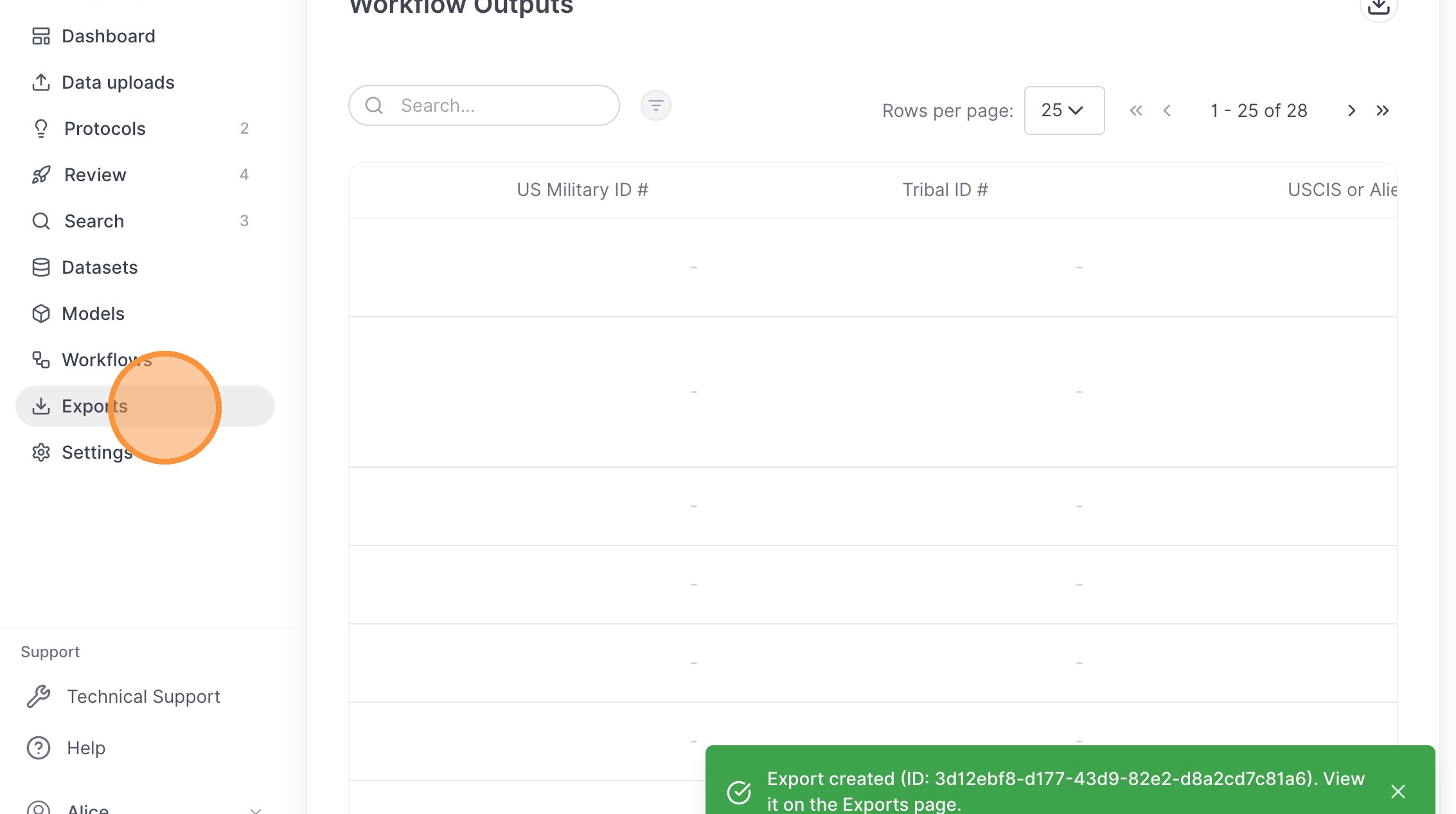
 21. Navigate to the ‘Exports’ page.
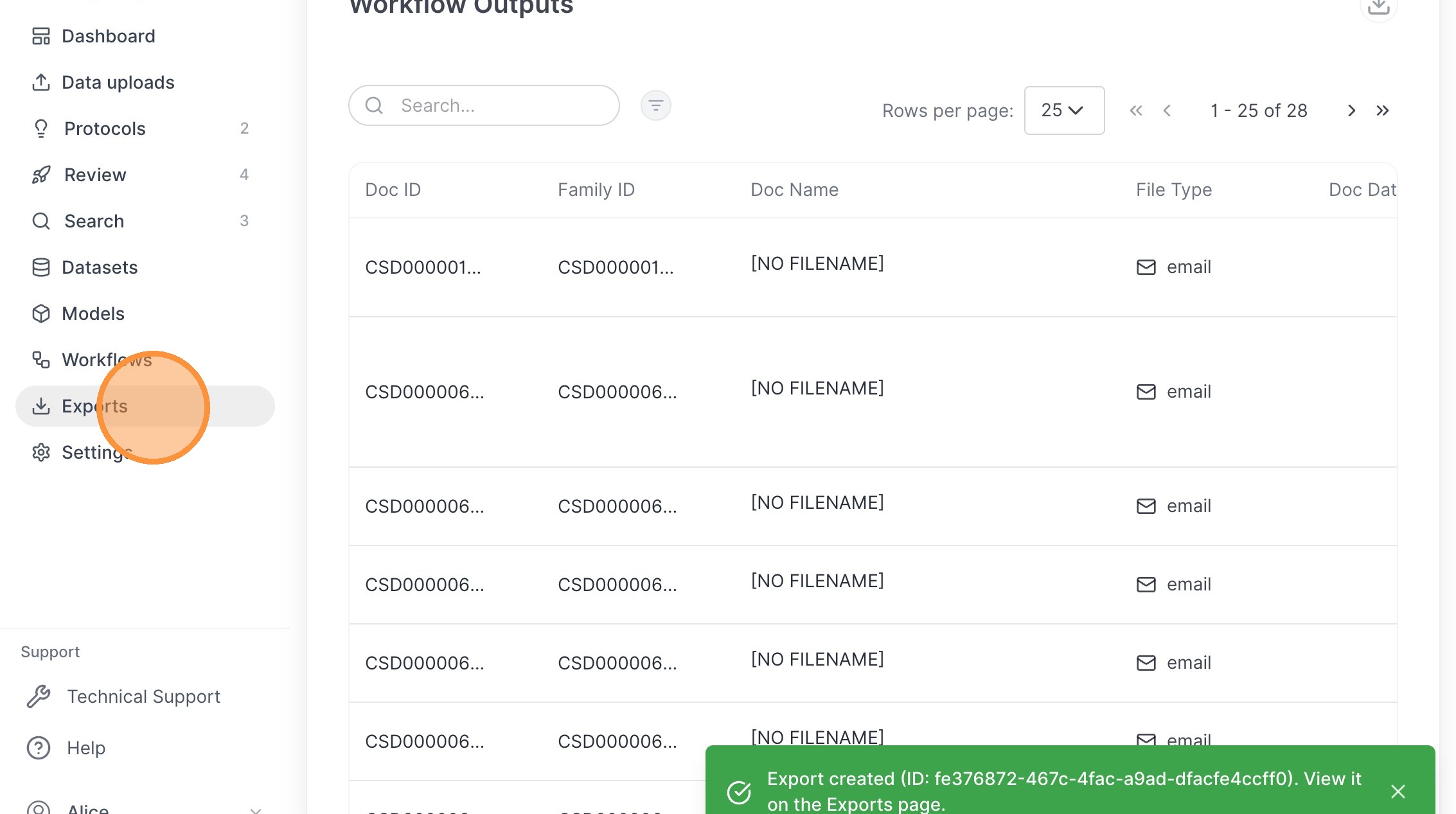 22. Delete the export record.

Exporting Workflow Results as CSV
This guide provides instructions on how to navigate to your project workflow results and export them as a CSV file. Follow these steps to easily download and manage your data for further analysis or reporting. Workflow Export Navigate to ‘Output’ tab.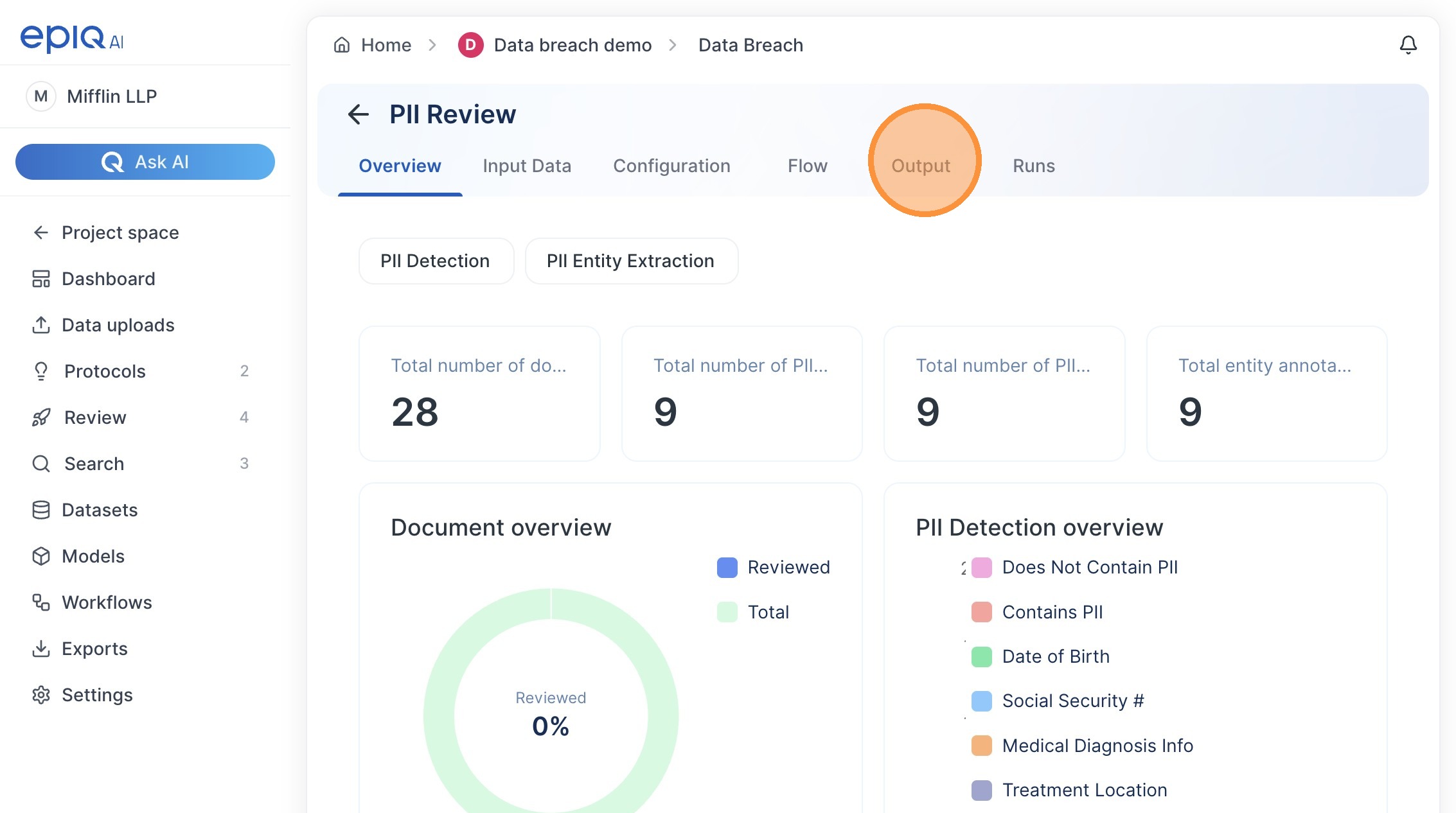 Click Export icon and select ’.CSV’.
 File Download
Select ‘Exports’ from sidebar.
File Download
Select ‘Exports’ from sidebar.

 Click ‘Download’ and select filename to save CSV file.