> ## Documentation Index
> Fetch the complete documentation index at: https://labs.laer.ai/llms.txt
> Use this file to discover all available pages before exploring further.
# Search protocols
Project Admins and Managers can add search protocols in Excel or CSV format, or create a new search protocol directly in Epiq AI.
A search protocol contains a list of search terms that can be used to generate search term reports or create subsets of the documents for review.
## Upload search protocols
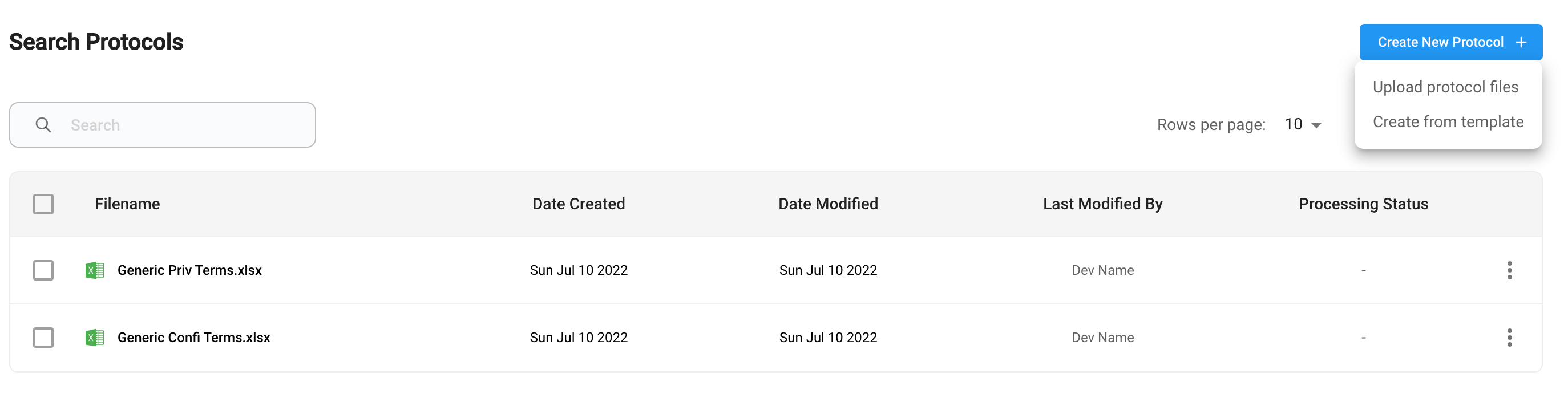
In the project's menu, click the `Protocols` section and go to the `Search Protocols` page. Click on the `Create New Protocol` button. You will be prompted to upload protocol files from your system or create a protocol from a template.
 If you upload a protocol with the same filename as a protocol that already exists, it will be treated as the same protocol but a newer version.
If you click `Create from template`, the system will automatically generate a search protocol and it will appear as a new entry in the search protocol list.
### Protocol template
You can create a search protocol directly from a system-generated template. After clicking `Create from template`, a new protocol will be generated with a default filename `search-protocol-.xlsx` , and show up as the last entry in the protocol table.
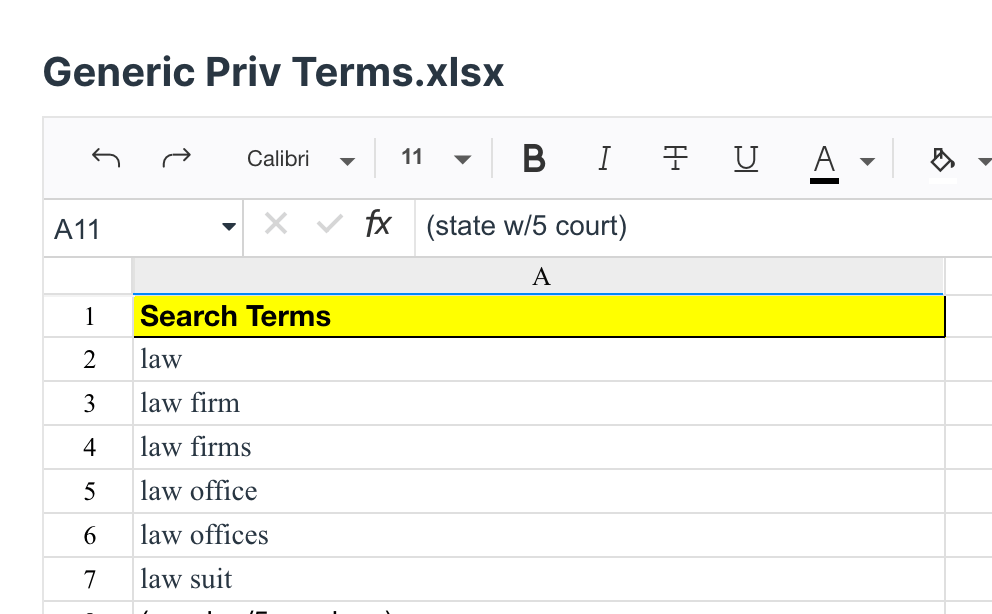
The search protocol template contains the following columns:
* **Search Terms**: boolean keyword queries in dtSearch format.
* **Start Time**: start date constraint, in the format of `2021-01-01`
* **End Time**: end date constraint, in the format of `2022-01-01`
* **Custodian(s)**: custodian constraint, in the format of a list of custodian names separated by `;`.
If you upload a protocol with the same filename as a protocol that already exists, it will be treated as the same protocol but a newer version.
If you click `Create from template`, the system will automatically generate a search protocol and it will appear as a new entry in the search protocol list.
### Protocol template
You can create a search protocol directly from a system-generated template. After clicking `Create from template`, a new protocol will be generated with a default filename `search-protocol-.xlsx` , and show up as the last entry in the protocol table.
The search protocol template contains the following columns:
* **Search Terms**: boolean keyword queries in dtSearch format.
* **Start Time**: start date constraint, in the format of `2021-01-01`
* **End Time**: end date constraint, in the format of `2022-01-01`
* **Custodian(s)**: custodian constraint, in the format of a list of custodian names separated by `;`.
 ### Protocol versions
You can select a protocol and view its versions. Click the three dots in the same row as the protocol of interest and then click `View`.
## Edit a search protocol
You can edit a protocol by clicking the `Edit` button on the Protocol View page or from the three-dot menu in the row of the selected protocol.
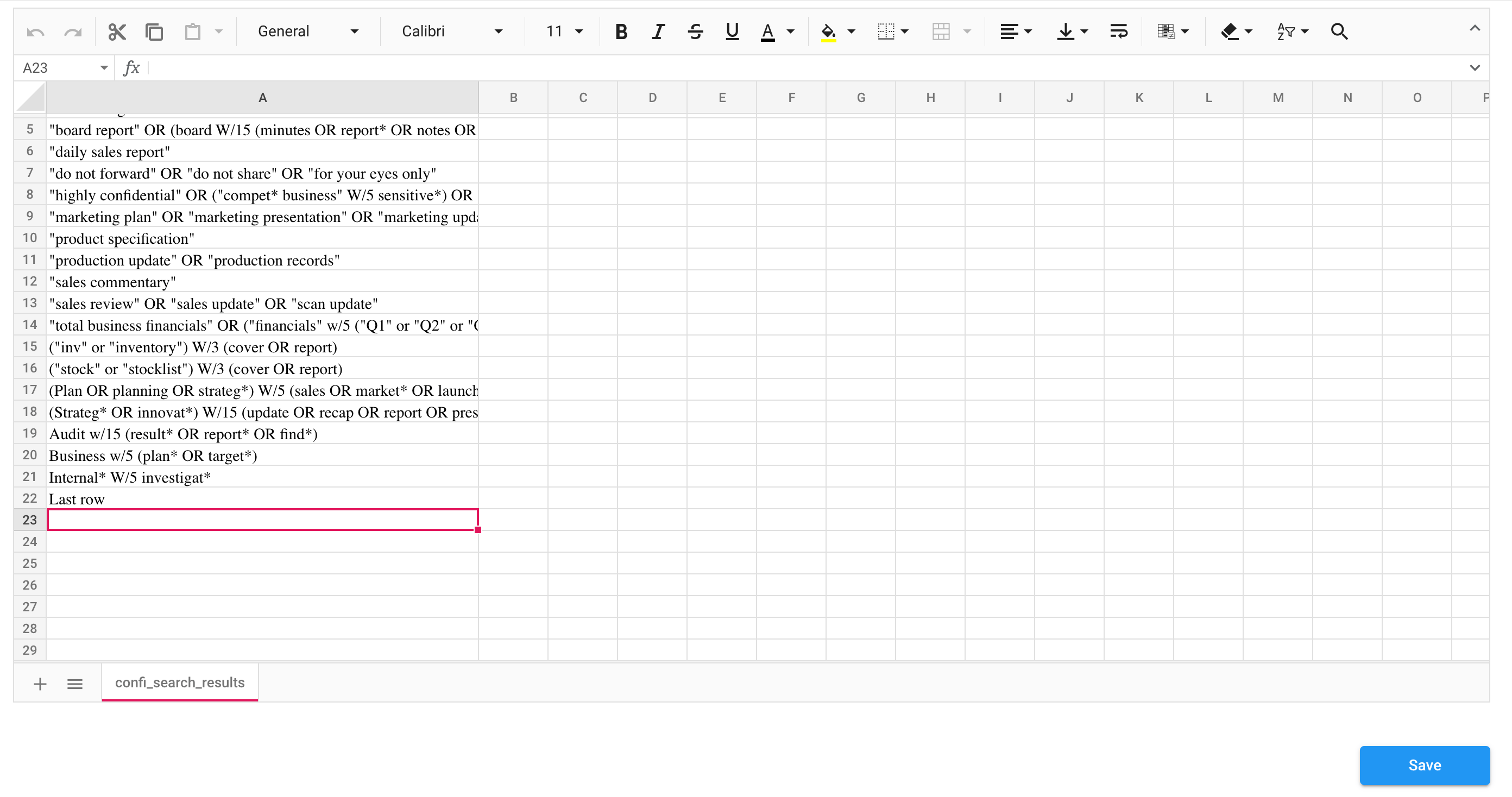
You can edit the protocol in a Spreadsheet editor and save your changes by clicking `Save`. Every time you save changes, it will create a new protocol version.
### Protocol versions
You can select a protocol and view its versions. Click the three dots in the same row as the protocol of interest and then click `View`.
## Edit a search protocol
You can edit a protocol by clicking the `Edit` button on the Protocol View page or from the three-dot menu in the row of the selected protocol.
You can edit the protocol in a Spreadsheet editor and save your changes by clicking `Save`. Every time you save changes, it will create a new protocol version.
 ## Delete a search protocol
Only Project Admins and Managers can delete a search protocol. On the `Search protocols` page, select the protocol(s) you want to delete and click the Delete button.
Deleting protocols is an irreversible and destructive action. Once a protocol has been deleted, it cannot be recovered.
## Download search protocols
On the `Search protocols` page, select the protocol(s) you want to download and then click `Download`. You can also export a protocol in Excel or CSV format by clicking the three-dot menu at the end of the row of the protocol.
## Delete a search protocol
Only Project Admins and Managers can delete a search protocol. On the `Search protocols` page, select the protocol(s) you want to delete and click the Delete button.
Deleting protocols is an irreversible and destructive action. Once a protocol has been deleted, it cannot be recovered.
## Download search protocols
On the `Search protocols` page, select the protocol(s) you want to download and then click `Download`. You can also export a protocol in Excel or CSV format by clicking the three-dot menu at the end of the row of the protocol.