> ## Documentation Index
> Fetch the complete documentation index at: https://labs.laer.ai/llms.txt
> Use this file to discover all available pages before exploring further.
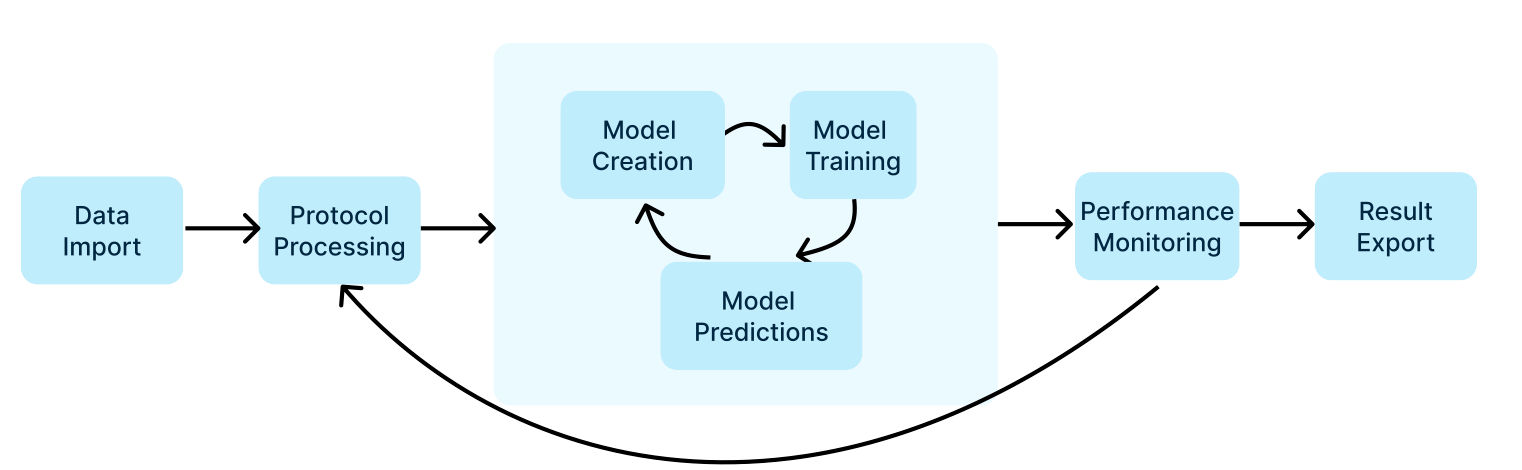
# Epiq AI workflow
1. Go to `Admin Settings -> Projects` and click `Create new project`
2. Enter the project name and description and click `Create`
3. Click on the newly created project to go to the project dashboard
1. Go to `Uploads` in the project dashboard, click `Create an upload`.
2. Upload native documents, see [import-native-documents.md](/product-guides/import-data/import-data-types/import-native-documents).
3. Upload preprocessed documents, see [import-preprocessed-documents.md](/product-guides/import-data/import-data-types/import-preprocessed-documents).
4. Upload annotations, see [import-annotations.md](/product-guides/import-data/import-data-types/import-annotations).
1. Go to `Protocols -> Review Protocols`, click `Create new protocol`.
2. Upload an existing review protocol or create a new protocol from a template. See [review-protocols.md](/product-guides/project-management/review-protocols).
3. Set the main protocol that contains instructions for review as the `default` protocol.
1. Go to `Models` and click on a pre-trained model of interest.
2. Clicking the `Predictions` tab to view model predictions. See [classification-models.md](/product-guides/models/classification-models).
3. Training a model by updating the model instructions or adding annotations. See [classification-models.md](/product-guides/models/classification-models).
1. Go to `Review -> Review Batches` and click `Create review batch`.
2. Create an active learning batch for model training or a control set batch for model evaluation. See [review-batches.md](/product-guides/document-review/review-batches).
3. Go to `Review -> Review Assignments` and click the corresponding review batch to start annotating.
1. Go to `Model -> Predictions` and click `Metrics`.
2. Selecting a classification threshold based on the Precision and Recall tradeoff.
3. Click `Update predicted tags` to update model predictions using the selected threshold.
1. Go to `Exports` and click `Create an export`.
2. Export annotation results. See [exports.md](/product-guides/exports/exports).
3. Export documents. See [exports](/product-guides/exports/overview).